

 UK
 USA
 Canada
 Australia
 New Zealand
 EU
 Japan
 Singapore
 UAE
 India
 South Korea
Clarity Max Touch 32" UHD 4K Monitor with USB-C Power Delivery, Webcam and Touch Screen


Couldn't load pickup availability
Specifications
Specifications
Downloads
Downloads

"The touchscreen functionality is highly customisable on a per-app basis, which is fantastic"

"Clarity Max - New slate of Apple-friendly monitors includes a Mac-compatible touchscreen"

"The world’s first 32-inch glossy display touchscreen for Mac"

"Colorful, rich, and bright — it’s a monster of a display that will wow you for a fraction of the price of many of its competitors"

The technology behind our Clarity monitors hasn’t lost any of its
lustre in
the transition to a bigger screen. They remain a studio-grade tool for creatives
professionals
who rely on accurate colours to work.
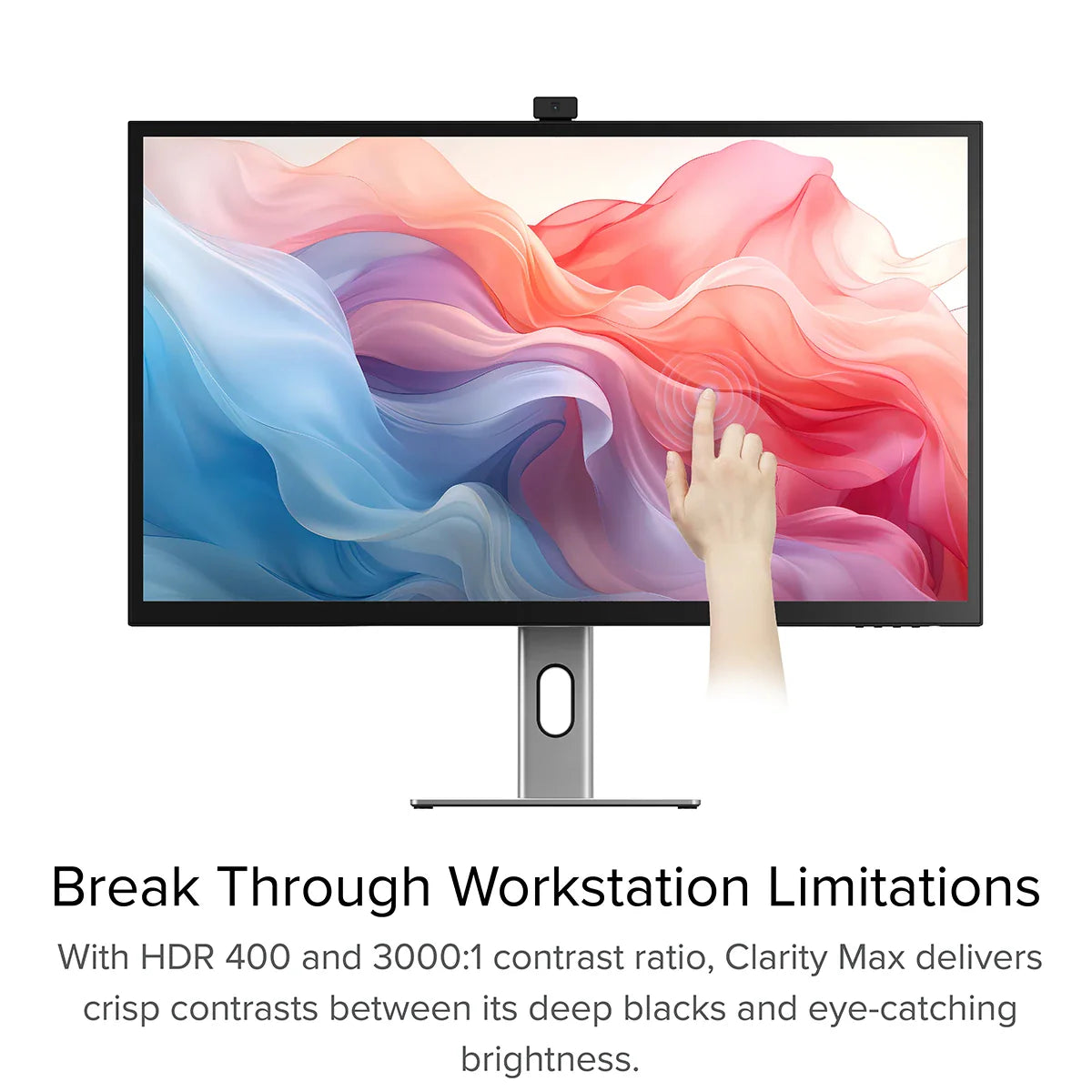
With HDR400 support and a 3000:1 contrast ratio, Clarity Max delivers crisp contrasts
between
its deep blacks and eye-catching brightness. Offering more than 16 million colours
across
their
4K Ultra High Resolution display, Clarity Max monitors are the perfect place to realise
your
next
masterpiece.


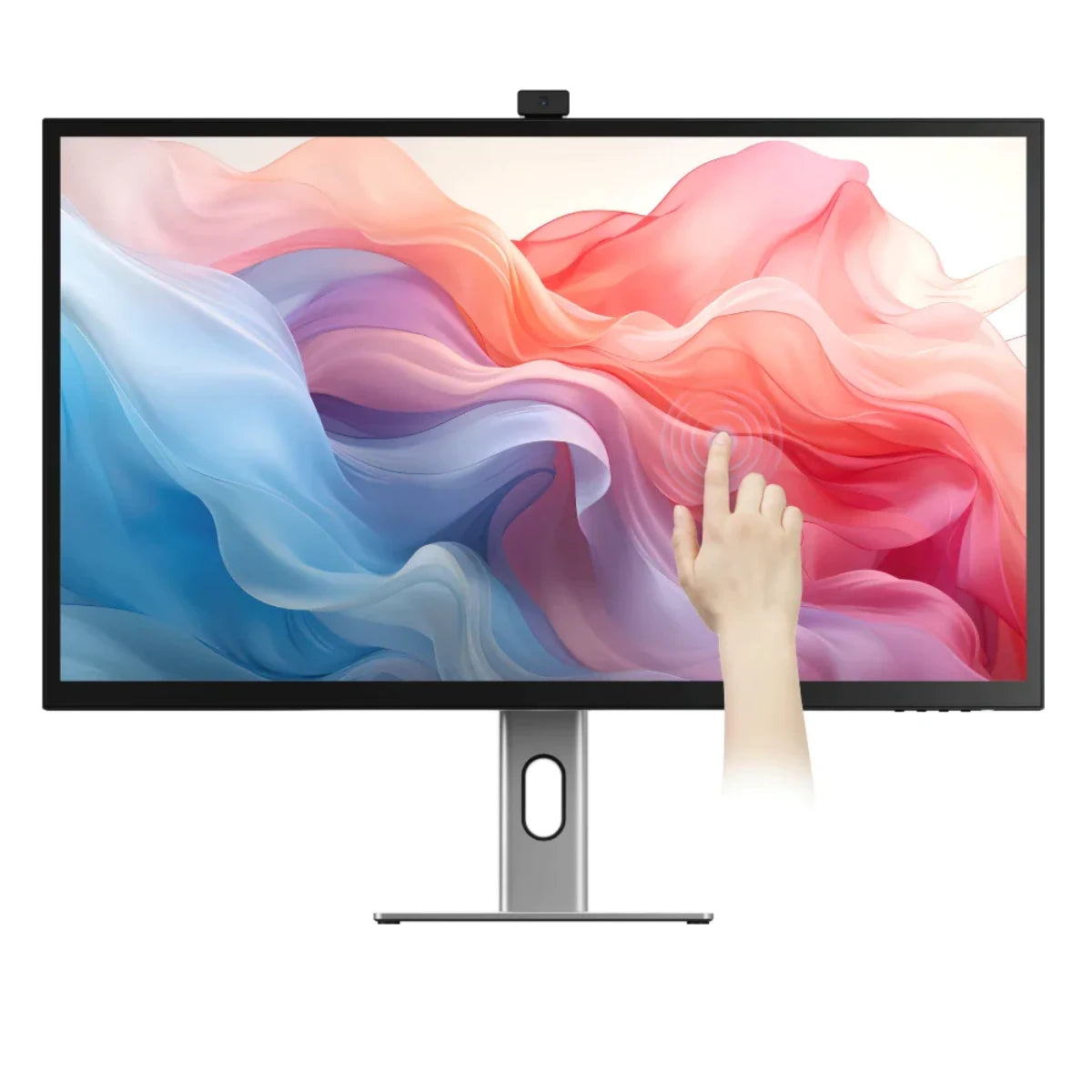
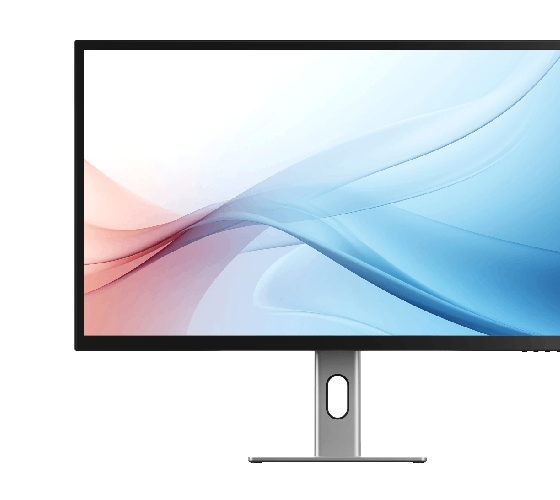
With 32” of 4K touchscreen, Clarity Max Touch delivers a desktop
navigation
experience unlike any other.
Pinch, swipe and sketch away on a screen almost three times the
size of the average iPad™, using your fingers or our pressure sensitive Active Surface Stylus
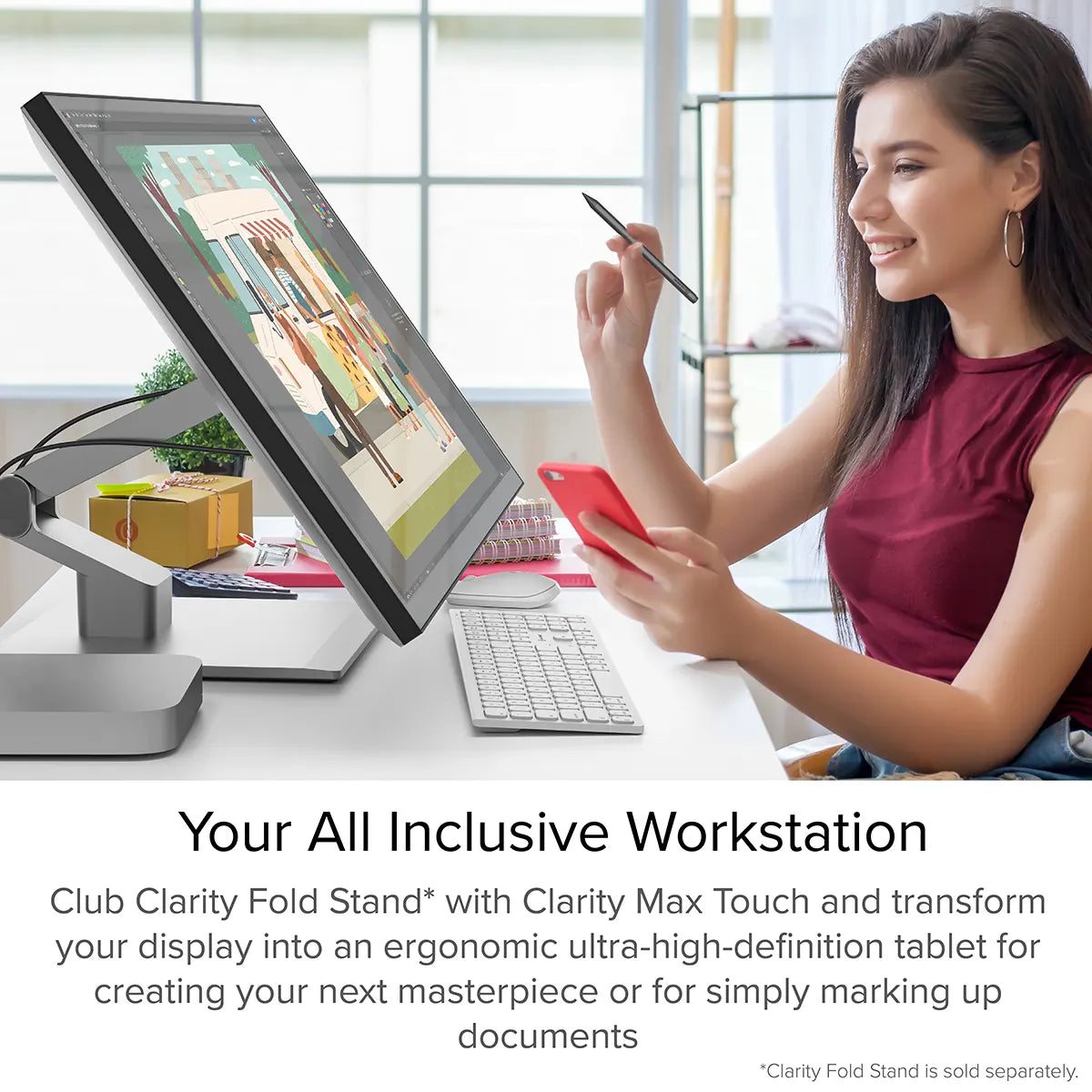
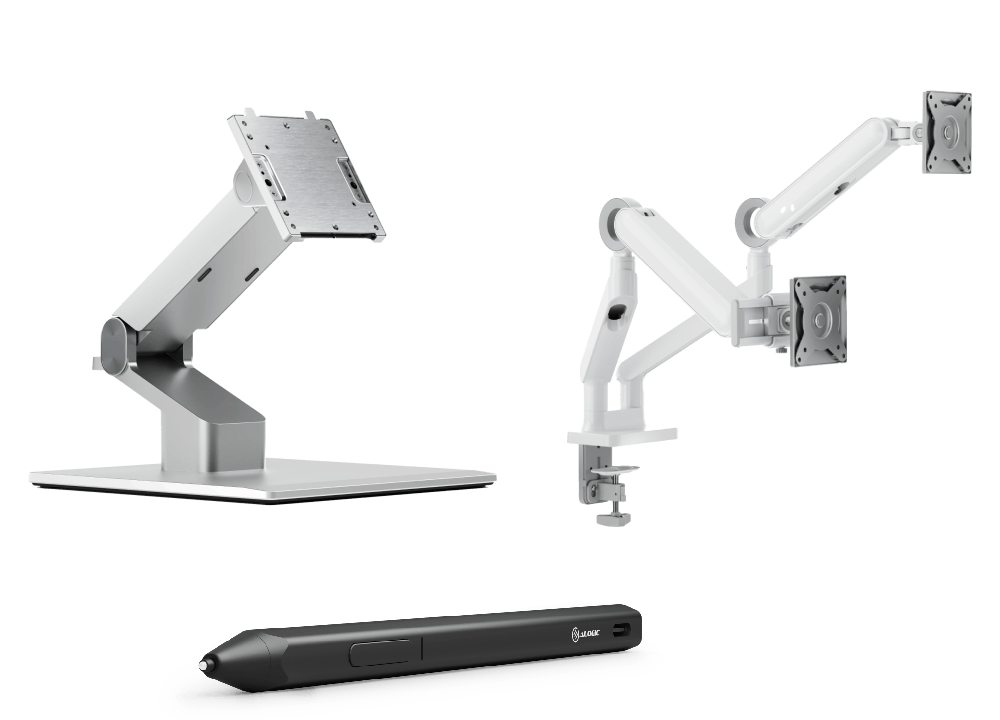
(sold separately). Transform Clarity Max Touch into a unique 32” drawing tablet with
in
seconds
with the Clarity Fold Stand
(sold
separately).
Touch isn’t just an intuitive way to navigate
your computer: it’s fun, freeform and spontaneous, helping you get creative on your next
project.
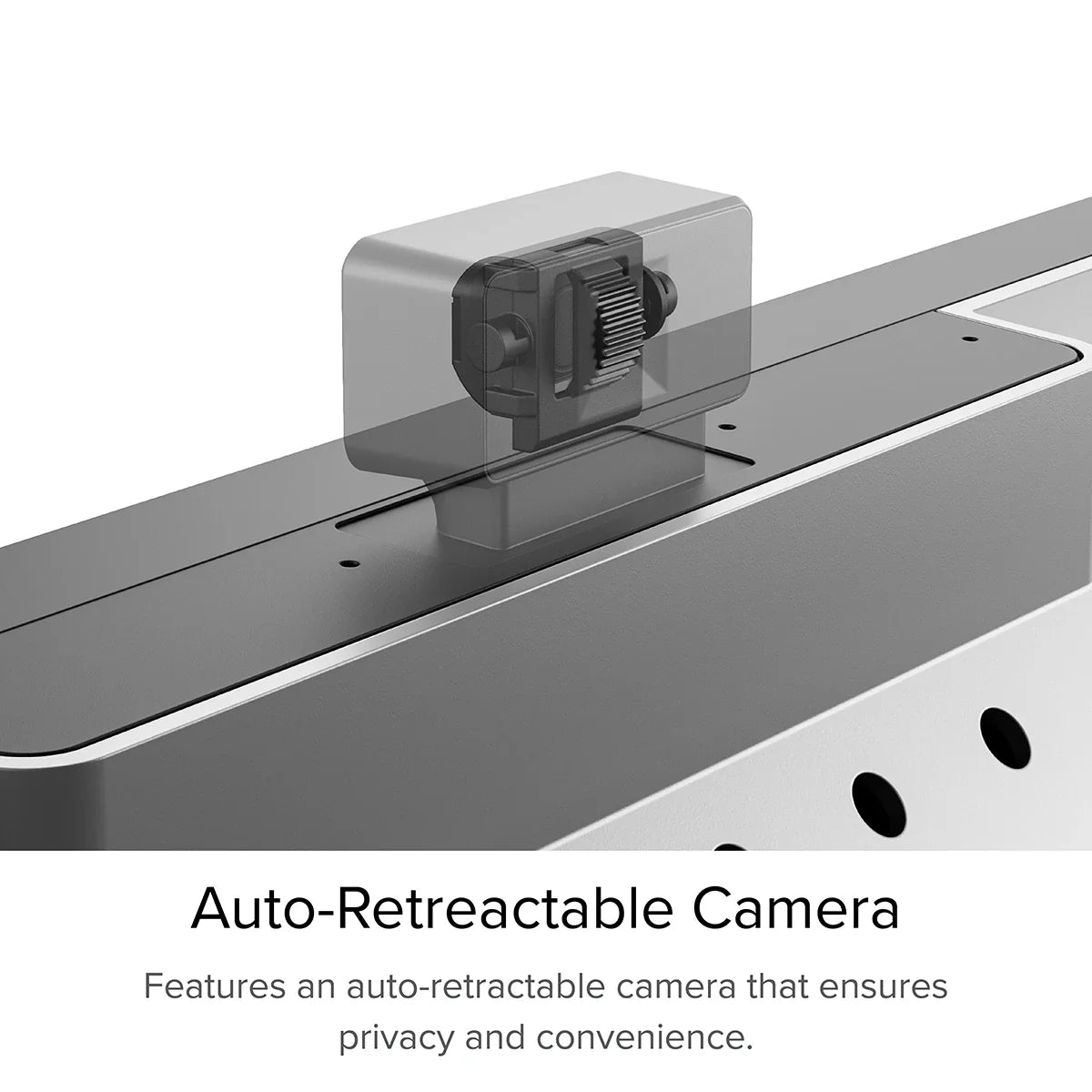
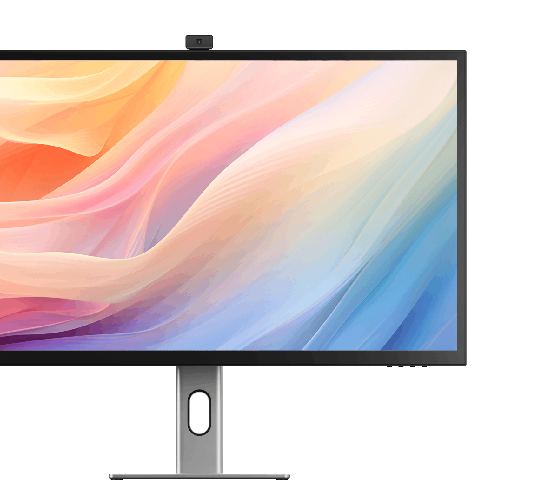
Put your best foot forward with the crystal-clear picture of Clarity Max Pro or Touch’s 8MP retractable webcam. The smart webcam automatically slides back into the monitor when it’s not in use, preventing you from sharing anything you didn’t mean to.
Quick and easy shortcuts, like swiping Clarity’s lower right corner with two fingers to access its touch menu, can completely change the way your navigate your favourite apps.
With our Clarity Touch drivers for macOS, it’s fast and easy to
configure
new touch controls for your favourite apps, letting you do more without reaching for your
keyboard shortcuts.
For example, you could set “Swipe Up with Two Fingers” to
add a
new MIDI
Track in Ableton Live or create a new masking layer in Photoshop. With Clarity Touch, you’re
in
control.


Sitting at the centre of your studio, Clarity Max Touch connects your
computer
to everything you need to compose your next piece.
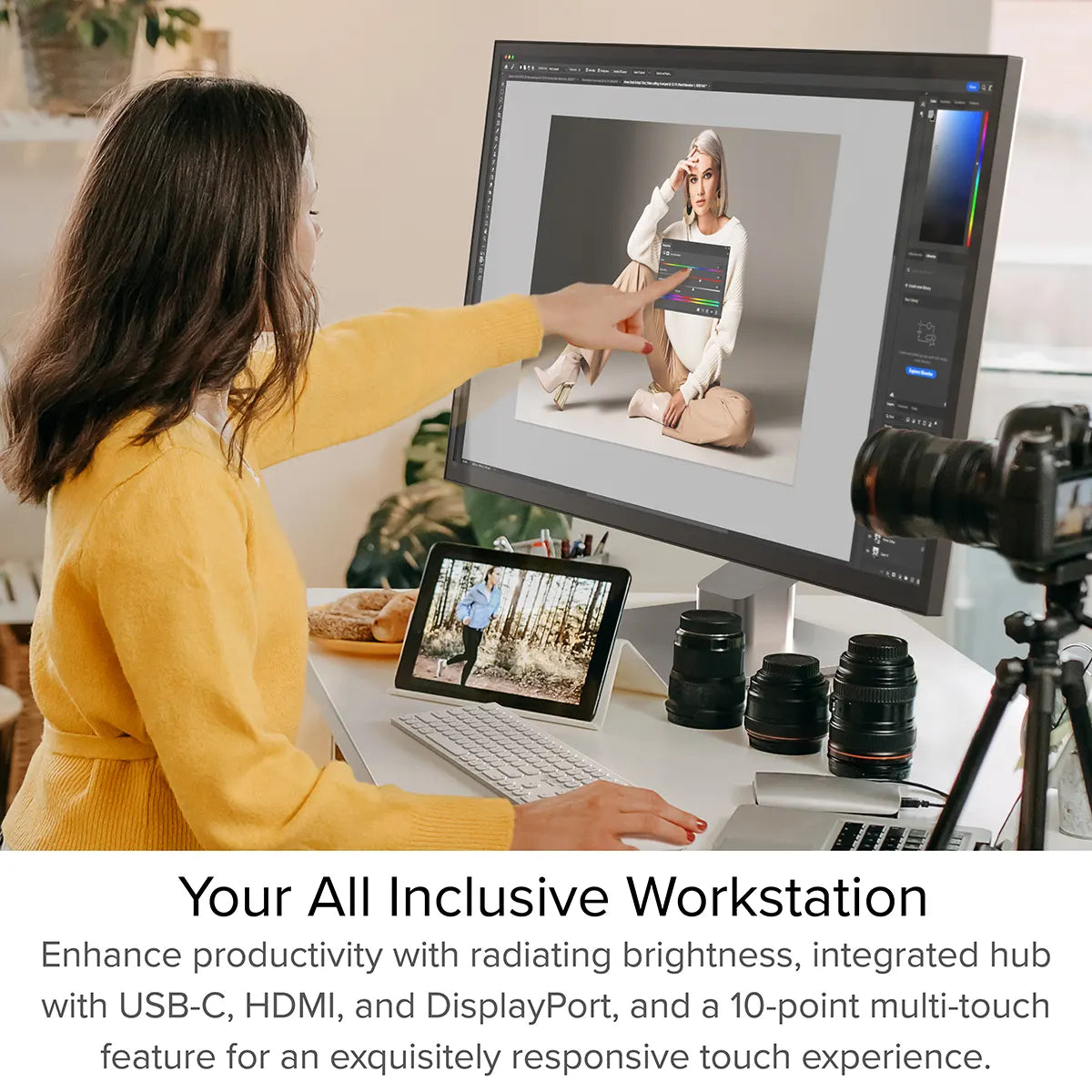
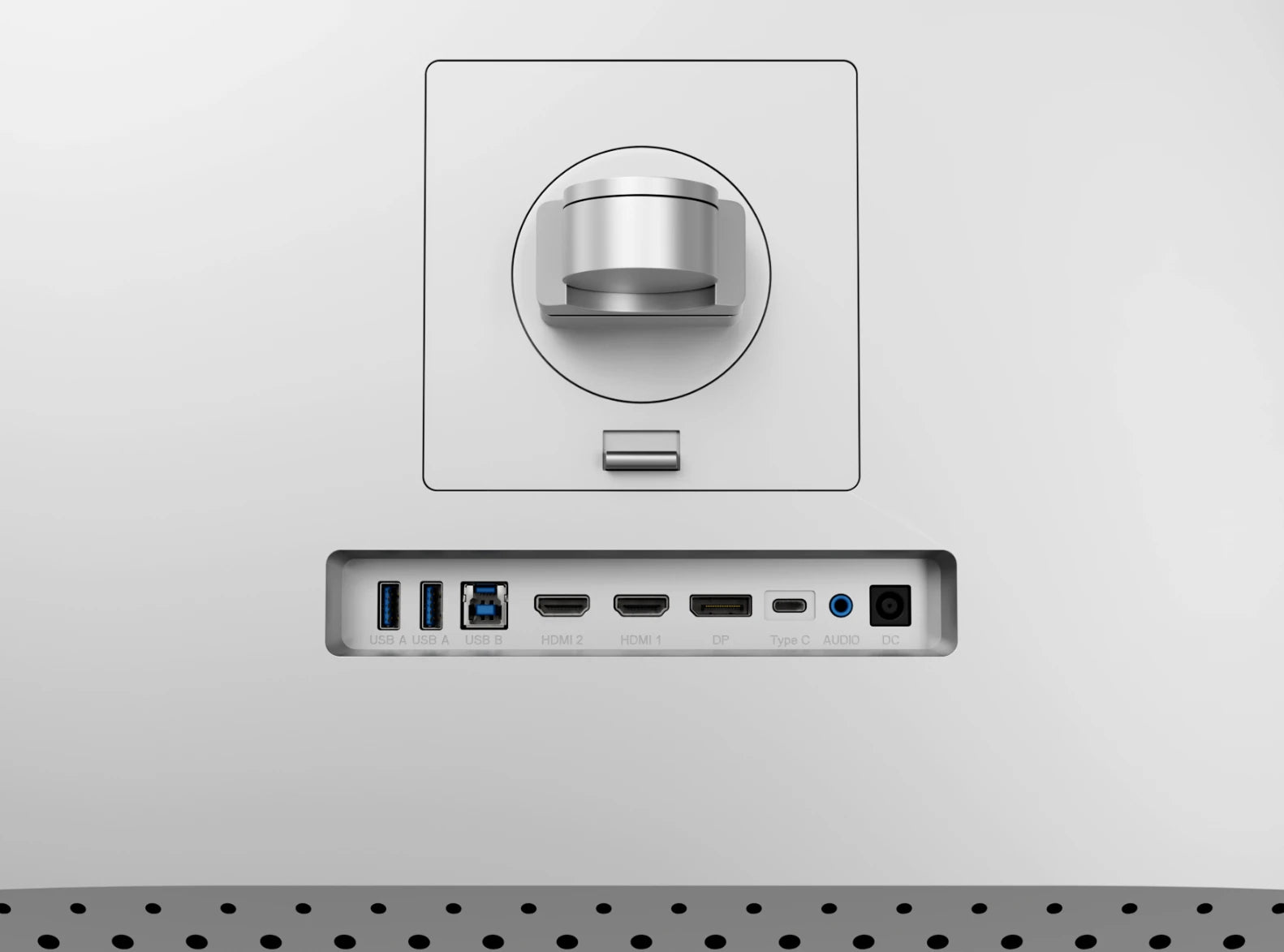
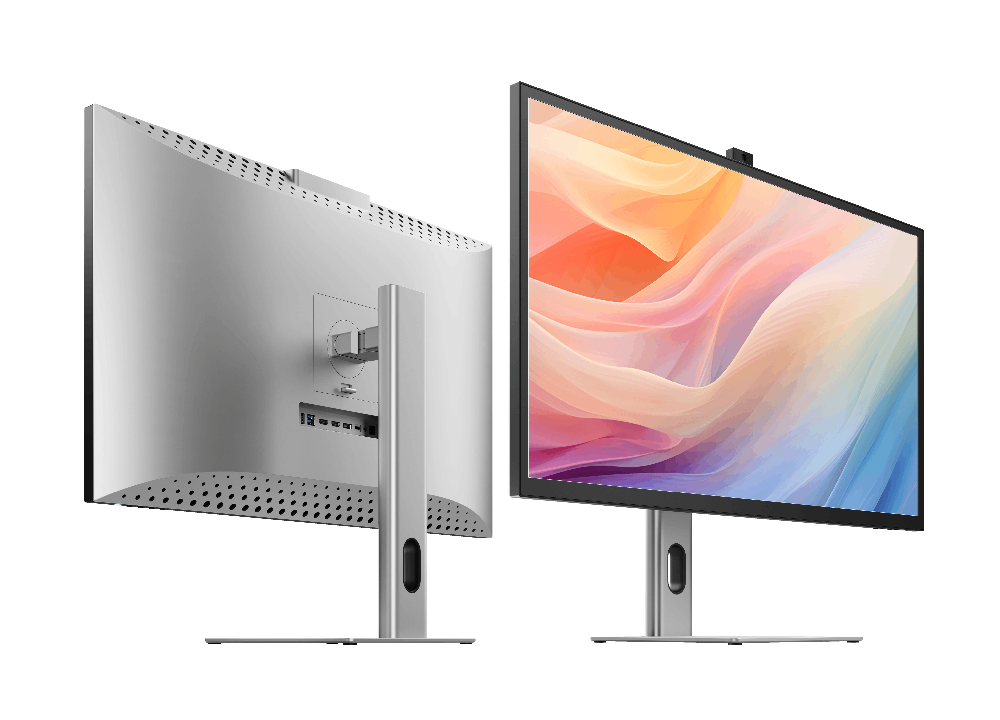
Its rear USB hub connects your computer to its webcam, touchscreen, two USB-A accessories, 65W
laptop charging and your 3.5mm speakers or headphone – all with the same USB-C cable you’re
using
for video.
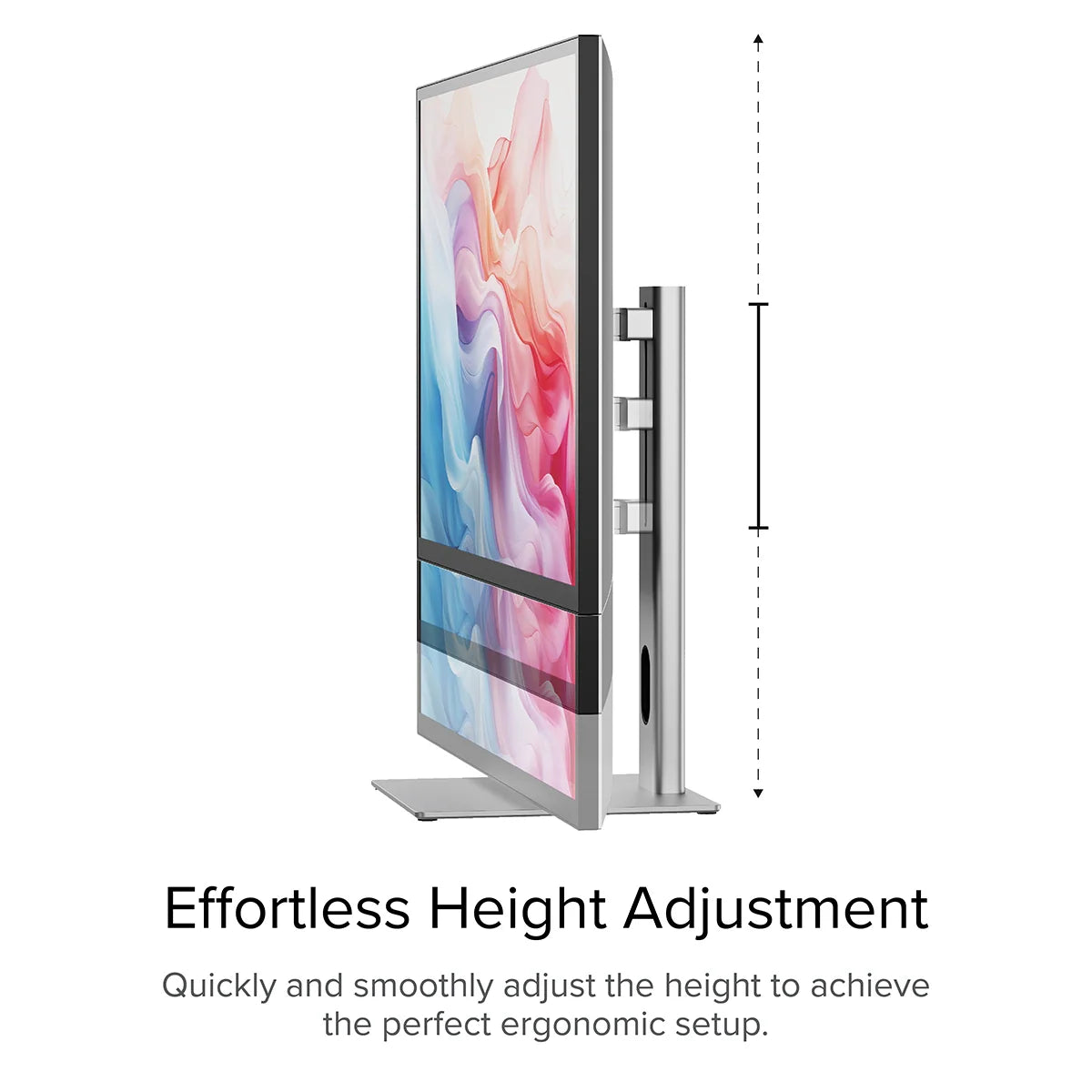
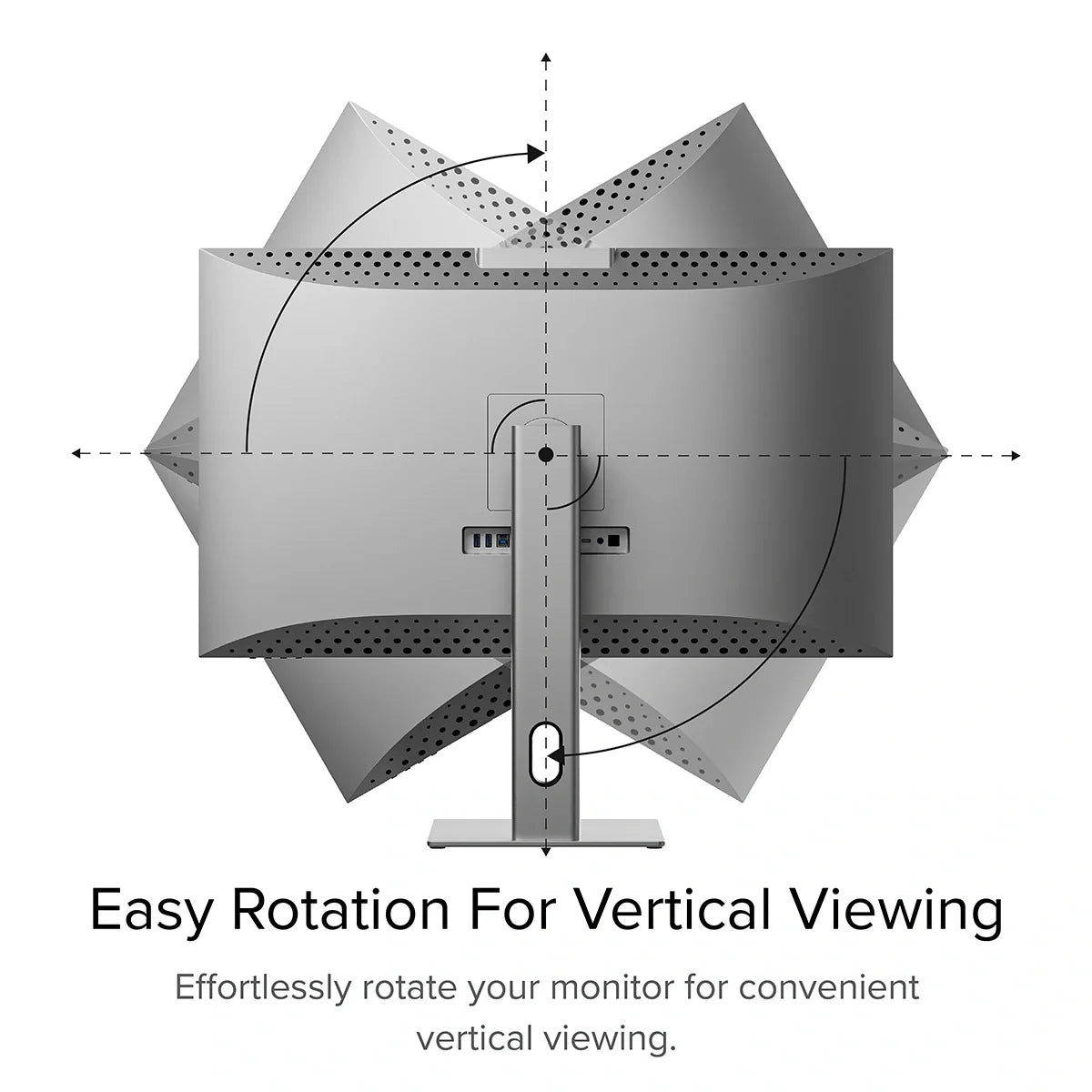
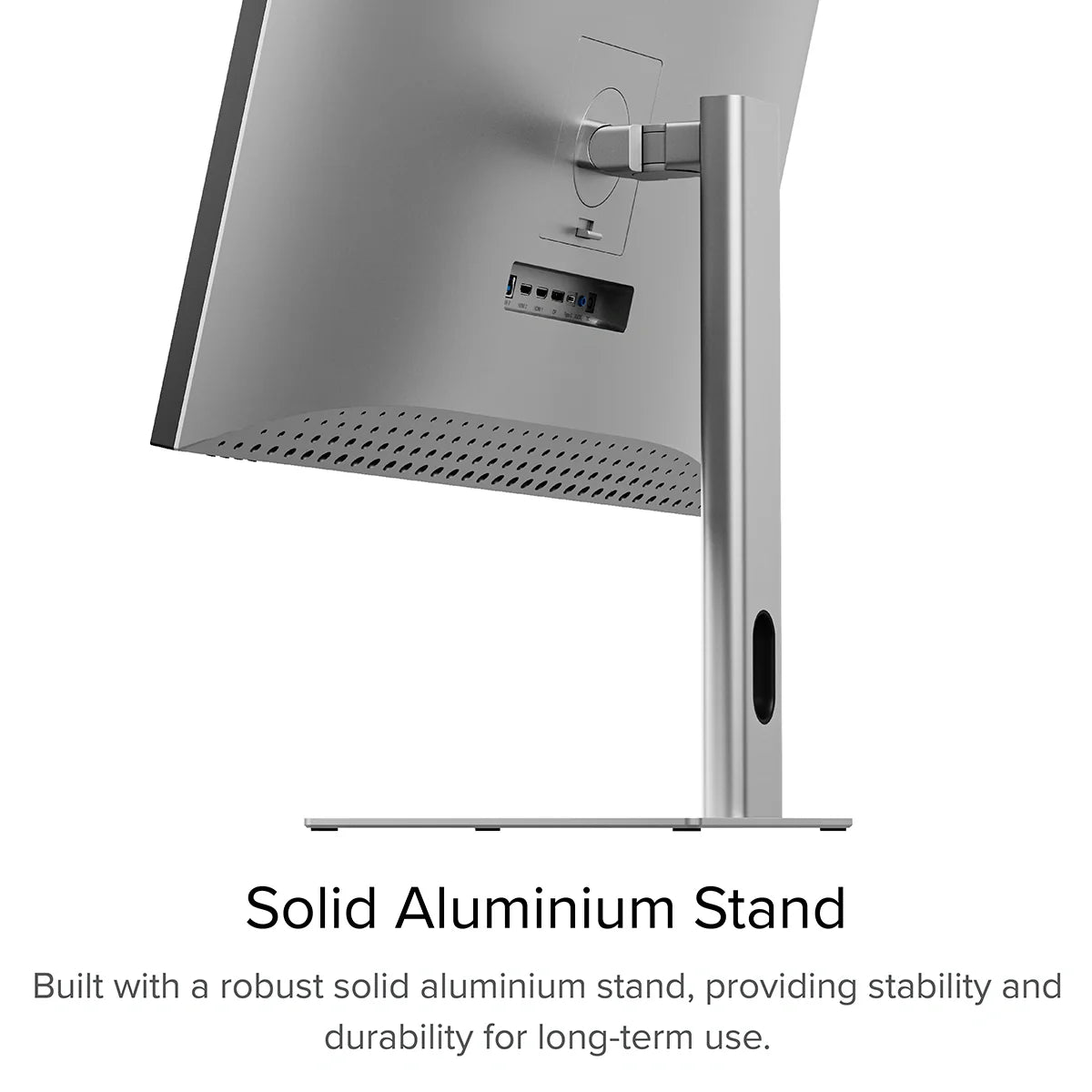
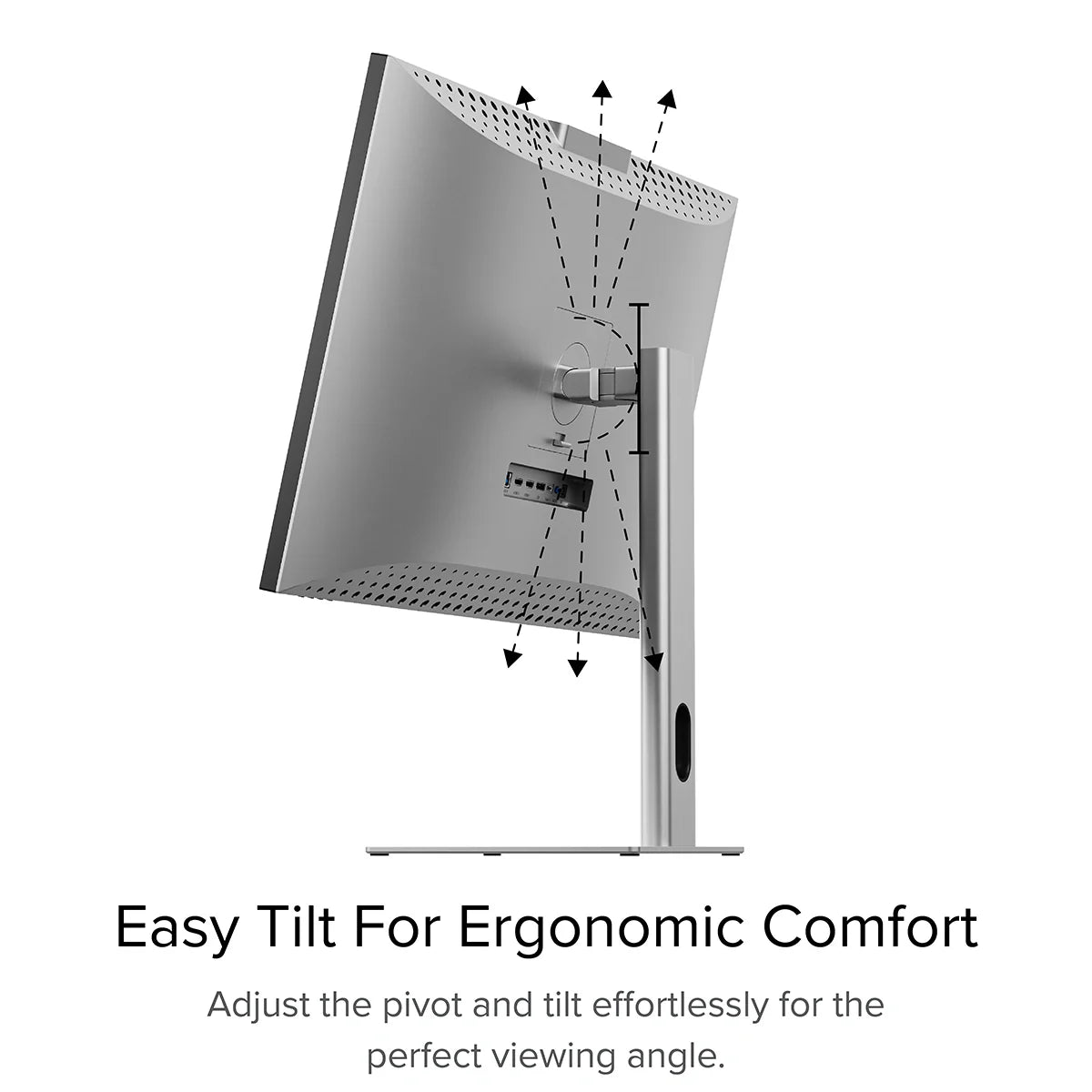
Our aluminium stand makes it easy to position Clarity Max exactly where
you
need it, letting you raise, pivot, tilt and swivel the display to fit your desk setup and
maximise
ergonomic comfort.
With Clarity Max, it’s easy to show off your latest design to colleagues, with wide 178°
viewing
angles across its broad 32” screen.
Compatible with 100x100mm VESA Mounts (such as our Clarity Fold Stand and Glide Monitor Arms),
Clarity Max is an easy inclusion in any setup, despite its size.



General


As a larger monitor, it’s important to check your monitor stand will support Clarity Max to avoid damaging your monitor.
Clarity Max is 32”, weighs 6.5kg without the stand and measures 725*250*606mm (LxDxH).
1. Connected to Clarity via either:Clarity's USB-C port or Clarity's USB-B port
2. Clarity "Active USB" mode is set to the same USB port you've connected to your computer.
To change Clarity's "Active USB" mode, navigate to "USB Switch" in the "Other Settings" menu of Clarity's main menu.
For example: if your computer is connected to Clarity via USB-C, you would select "Type-C" in the "USB Switch" menu.
However, it does need to plug into a USB-C port compatible with PD (Power Delivery) on your computer.
These can sometimes be identified by the presence of a battery icon next to the port on your laptop, but often you’ll need to check the user manual or manufacturer’s website to figure out which USB-C ports support PD.
All Thunderbolt 3 and 4 ports support PD.
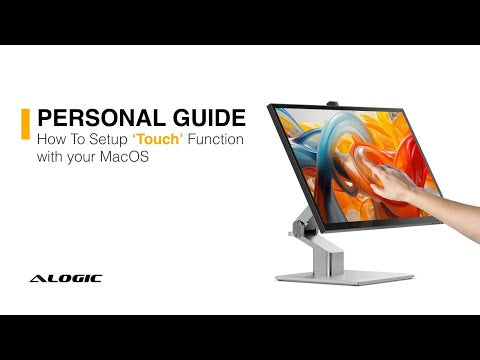
In order to get multitouch working on macOS, you’ll need to install our macOS drivers.
Clarity’s Webcam hasn’t been tested with legacy versions of Windows and macOS.
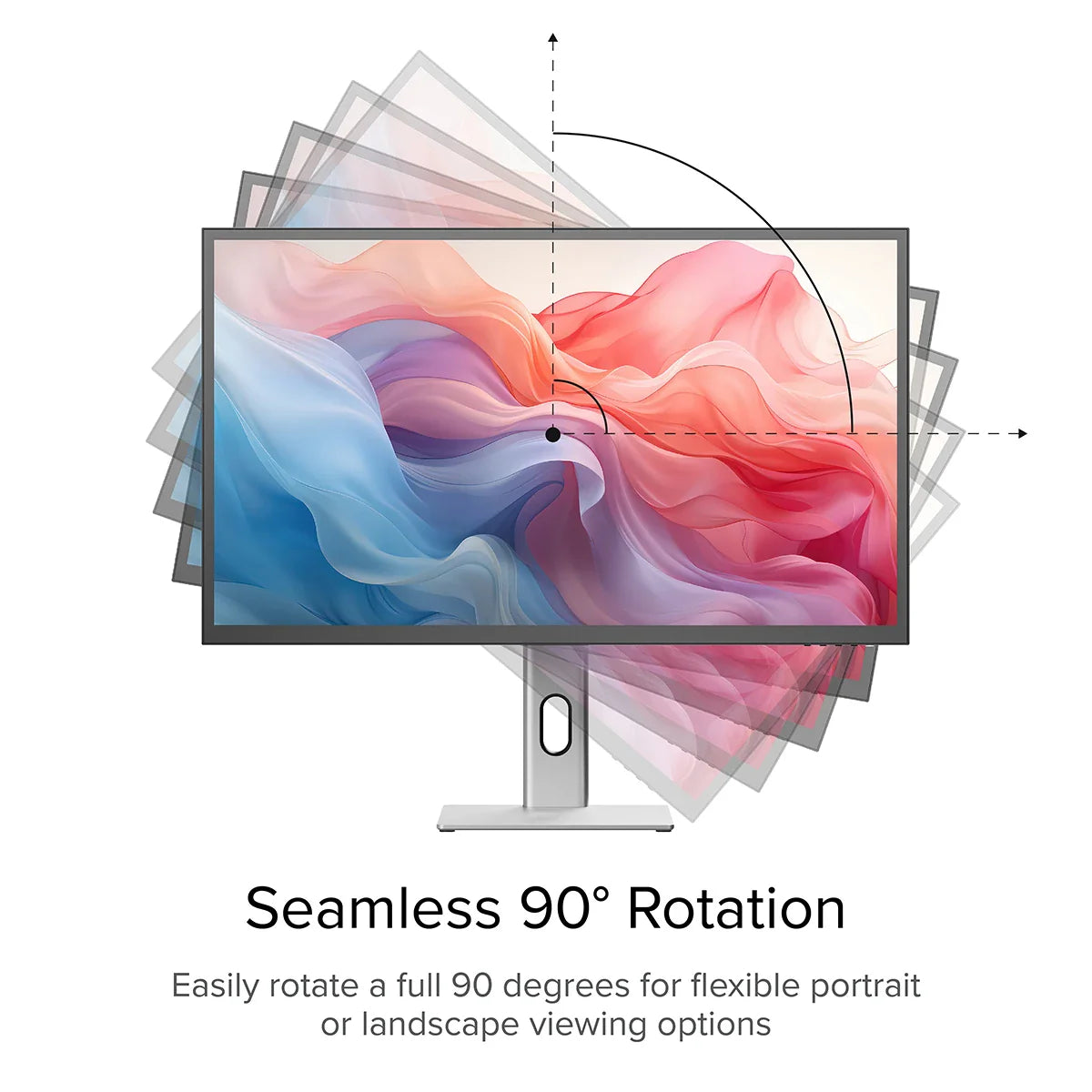
1. Ensure the monitor is at its maximum height on the stand.
2. Tilt the monitor as far as it can go by pulling its bottom edge towards you.
You can then slowly rotate the monitor without the corner hitting the desk.
Clarity Max’s screen won’t automatically rotate after you move the monitor. To rotate the picture, follow these steps:
Mac
1. Open System Settings -> Displays.
2. Click on your Clarity Max and change ‘Rotation’ to 90° or 270°, depending on which way you turned it.
Windows
1. Open Settings -> System - > Display.
2. Click on Clarity Max, and under the ‘Scale & layout’ menu, switch ‘Display Orientation’ to Portrait or Portrait Flipped, depending on which way you turned it.
Webcam
As a result, the webcam will work with any program attempting to access a webcam.
This includes videoconfering programs such as:
Microsoft Teams
Skype
Google Meet
Slack
Cisco Webex
Zoom
GoTo Meeting
As well as livestreaming programs like:
Open Broadcaster Software (OBS)
Xplit
Streamlabs
Open a program which requires the webcam – on Windows 11 we recommend the “Camera” app or “Photo Booth” on macOS.
Open this application and switch the active camera to Clarity Pro’s – this can be done via the “Camera” menu in Photo Booth or hitting the “Switch Camera” button in Camera – see below.
Once you’ve activated Clarity Pro’s webcam, it will slide up out of the monitor. You can now adjust its vertical framing using the scroll wheel on the rear of the camera.
Touchscreen
Moving your mouse onto Clarity before using the touchscreen usually resolves this issue.
Solution - Windows If you’re using Windows 10 or 11 with multiple displays you can specify which monitor you want touch input to apply to, which saves you having to mouse over to that display before using touch.
To do this, launch Control Panel, click “Hardware and Sound” then ‘Calibrate the screen for pen or touch input’ from the menu.

Select “Setup”, choosing “Pen Input” if you’re using an active stylus or “Touch Input” if you’re using your fingers or a capacitive stylus, then follow the onscreen instructions.

If completing this process doesn’t resolve your issue, try setting up for the other kind of input.
Troubleshooting
To resolve the issue, restart Clarity by pressing the power button twice – it should recognize the connected device as part of its boot-up sequence.
If this issue persists, we recommend trying the following steps to isolate the issue:
Connect Clarity directly to your computer
Try connecting with a different cable or port.
ie. Use DisplayPort instead of USB-C
Update your computer’s operating system.
If your problem reoccurs and these these steps do not help resolve it, please contact ALOGIC support (support@alogic.co).
Touchscreen
Moving your mouse onto Clarity before using the touchscreen usually resolves this issue.
Solution - Windows If you’re using Windows 10 or 11 with multiple displays you can specify which monitor you want touch input to apply to, which saves you having to mouse over to that display before using touch.
To do this, launch Control Panel, click “Hardware and Sound” then ‘Calibrate the screen for pen or touch input’ from the menu.
Select “Setup”, choosing “Pen Input” if you’re using an active stylus or “Touch Input” if you’re using your fingers or a capacitive stylus, then follow the onscreen instructions.
If completing this process doesn’t resolve your issue, try setting up for the other kind of input.
Display
The stats listed below are the average colour accuracy for Clarity Max, although be aware that each panel’s colour
Although each monitor is varies slightly, below are the average colour accuracy stats for Clarity Max.
Clarity Max:
- Gamut Coverage (NTSC): 91%
- Gamut Coverage (DCI-P3): 96%
- Gamut Coverage (SRGB): 99.9%
- Gamut Coverage (Adobe RGB): 97%
- Gamut Coverage (BT2020 CIE1976): 77%
- Average ΔE: <1
Clarity Max Pro and Clarity Max Touch:
- Gamut Coverage (NTSC): 95%
- Gamut Coverage (DCI-P3): 102%
- Gamut Coverage (SRGB): 98%
- Gamut Coverage (Adobe RGB): 110%
- Gamut Coverage (BT2020 CIE1976): 76%
- Average ΔE: <1
If you wish to further calibrate your monitor, you will need to use a third-part calibration tool, such as a Calibrite/Sypder.
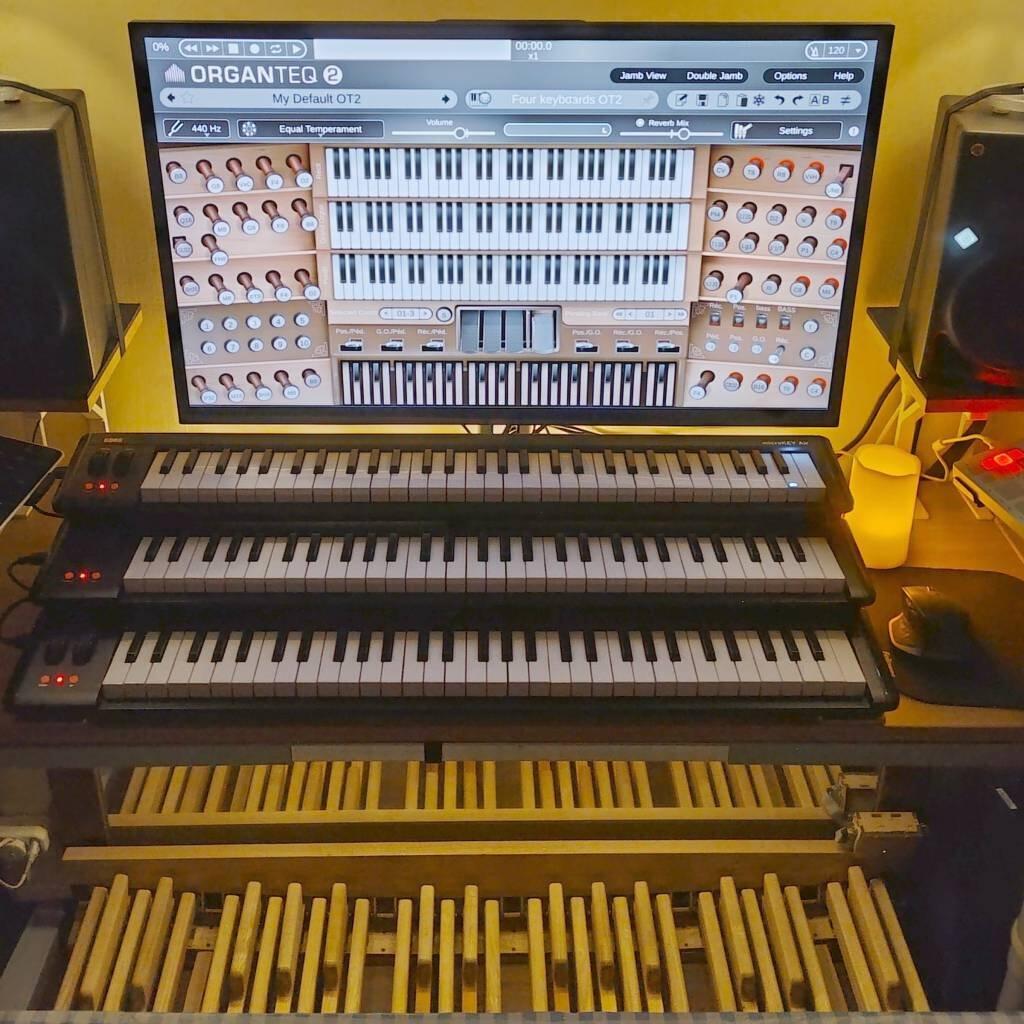
My need is a relatively large, fairly good, suitably high-resolution Debian compatible glass-fronted multi-touch computer monitor, with a stand able to accommodate my MIDI gear, and this 32" Clarity Max Touch delivers exactly that, so I give this all the stars.
While LCD as such, with its conceptual weirdness of blasting backlight into shutters, for laws-of-physics reasons, cannot compete with technologies that generates their light as needed, this panel is fine for me and 4K is my sweet spot, partly because it's a standard and party because it's enough that I can't make out individual pixels from my typical viewing distance. For me, more pixels would mostly be wasteful.
The webcam has colour noise like a 2010 smartphone. The speakers sounds like a Y2K laptop, with nothing outside 100Hz to 10kHz. The microphone array has a 16kHz sampling frequency (so no audio above 8kHz) and makes a warbling rumble, limiting its effective S/N to about eight bits of dual mono, all in all making it sound like my beige plastic 1990 PC microphone. As I don't really need them, I'm pretty happy I apparently didn't pay a lot extra for them.
Perhaps firmware updates could improve them a bit. By the way, even though the camera housing is fixed, when extended, you *can* change the camera framing a bit with a little wheel on the rear of the camera housing. The camera is fairly wide angle, so even though it, by necessity, sits high atop the monitor, as I sit a bit away from the screen, I have no problems fitting into the frame and I don't think the angle is an issue.
For video calls, for the computer to ding at me when doing something wrong, listening to the news or even some light elevator background muzak, they're okay. For a quick no-production-value information video, I might use them. For anyone contemplating serious streaming, they're more of a last resort emergency backup.
The onboard USB hub is neat and since it comes along when doing a single-cable USB-C connection (power, video, audio, touch and general USB) to a laptop, it's a great little "docking station" for an external mouse, keyboard, a USB headset, a printer, scanner or anything else you want to become available on the connected laptop without having to move any other cords. I wish the built in hub had more than two downstream ports, so I didn't have to plug a hub into the hub.
I don't own the stylus pen, so I have no idea how well a thing based on the Microsoft Pen Protocol might work in Linux. Without the folding monitor stand, which wouldn't fit on my desktop anyway, I wouldn't be able to doodle for more than a minute at a time.
Bought the 32" 4k UHD with USB C connection and at these headlines I am delighted. However the embedded audio and particularly the cam are quite a let down. Surely it was reasonable to expect a 4k CAM and HD sound as I have with my surface tablet?!! Come on product team, sort it out. As a result I now have my Surface bluetacked to the back of the screen so I can use its cam and audio by peaking it over the top of the screen. A real disappointment in the package
Brought the 32 inch touch, folding stand, and pen.
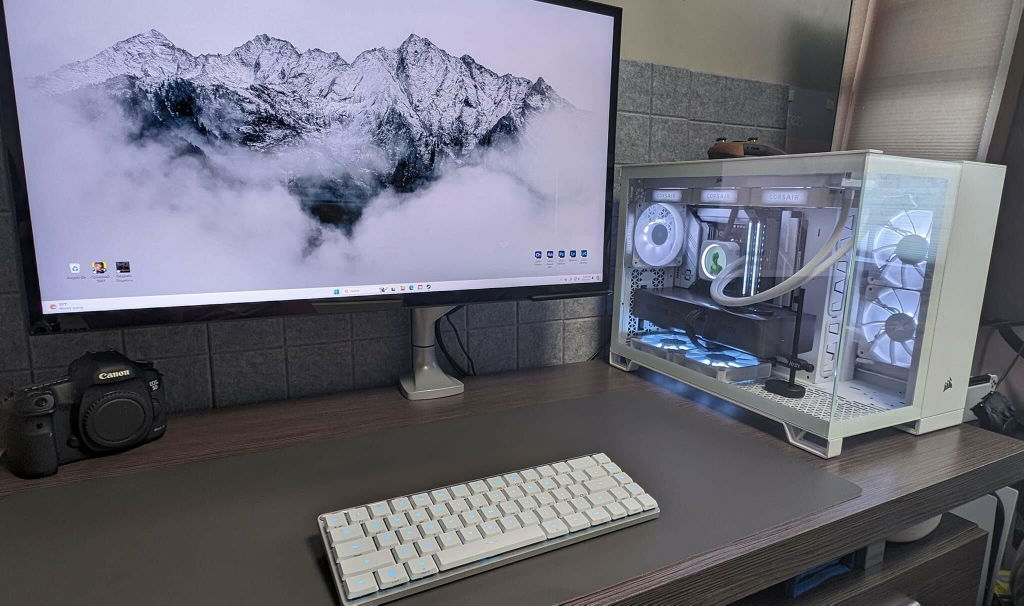
Monitor is great once you play around with the colors. Very sharp. Impressed with it. The fact I can edit photos on the touchscreen is a huge plus. The built in cam feature is garbage. It pops up and there's no way to move or angle it. You have to move the entire monitor to try to get into frame. Should just rid of that option on future models. I have a Windows computer and no USBC on video card. Had to use the regular USB cable with the display port to get touch to work.
The pen is ok. It does the job.
Do not get the folding stand if you get the 32 inch model. The monitor sits too close to the floor. It's only made for the 27 inch. Had to return and go with the a monitor arm.
Overall I'm happy with the monitor.
送られてきたディスプレイには満足しているが、送っていただいた箱がきたなくて、これは正直中古品あるいは展示品を送ってきたと思いました。いまもそう思っています。
Clarity Fold Touch 32" 4K UHD Monitor with 65W Power Delivery, Webcam, Touchscreen & Fold Stand
Outstanding
Overall I think this is a good monitor. It does however have its challenges.
The webcam is broken as designed. It shows a mirrored view instead of a normal view and there are no driver options to correct it. Speakers are good enough for system sounds and even most music. A power cord and a thunderbolt 4 cord are all it needs to connect to your computer. Windows 11 recognizes it and mostly it is beautiful. I get occasional flashes and every once in a while, when working with Teams the monitor will blank out completely for a second. I'm hoping new drivers will come out and correct the webcam and screen issues.
Took 2 months to arrive
resolution great, touch sensitivity very good….and it looks great! Highly recommended.
Great piece of kit , apple should be very concerned , best value bang for your buck monitor in the market .
Clarity Max Touch 32" UHD 4K Monitor with USB-C Power Delivery, Webcam and Touch Screen
Deze monitor is geweldig. Door het 32 inch formaat kun je de bewerkingen in Adobe Lightroom heel goed zien en uitvoeren. De kleuren zijn echt geweldig. En met de pen kun je touch screen werken. Fantastisch. Ik ben heel blij met deze 32 inch monitor .
I was a little concerned after reading some reviews about this monitor, saying the display was dark, however after setting up the brightness and gamut this was not an issue. The Alogic monitor is excellent. Having the touch screen is an added benefit. My only minor gripe is the speakers. I think they could be improved that’s the only reason I gave 4* rating. All in all this is a wonderful display and well worth looking at. No pun intended.
Forget Apple, this product is way better
I love touch screen and had to have this one when I saw it. The touch screen is great and bright. I have a Microsoft Surface Pro 9 and was happy to find out that I could use the Microsoft stylus with this screen. I wish the drivers for Mac to add some off the Creative Cloud features to the touch screen were available for Windows, but oh well.
A bit hard to understand the configuration and all the possibilities, New Mac Mini M4. Super good. thank's
Great Monitor, even better customer service!
professional / perfect
Not expensive but not good.
The colors of the screen connected to a MacBook Mini are ugly. In some situations, the screen shifts to B&W, and finally, the microphone does not work well!
Clarity Max Touch 32" UHD 4K-skærm er en yderst god skærm og de indbyggede højtaler er også i ok stand. Den indbyggede mikrofon og indstillingerne for webcam kunne godt være bedre. Samlet set en virkelig god skærm
Excellent touch screen. Webcam is not upto the mark and should have been better. Nowadays 4K Webcam has become a basic necessity.
The screen is amazing and is all that's promised except for one issue. The USB C connection is needed for touch screen to work.When connected to a PC (Geekom mini form) the computer will not wake from sleep. I need to be connected to HDMI which doesn't support touch screen functions. You need to connect the additional USB-A or USB-B to get the touch function. I didn't see this in the instructions but I'm male... don't really read them! Their online chat support helped me in 2 minutes... after my IT contractors coudln't resolve the situation. I'll be giving them some grief... but if the information isn't available then I can't blame them entirely.
Very please with the quality and look of the 32” monitor. Great value.
So beautiful
From All the advertising and presentations, I expected for this monitor to be much better.
Made a mistake to buy!!.... colour calibration is quite poor, starting-up is quite slow and the touch-screen fearture is not what is made to be.
Nice screen, slightly less brighter than expected - does not have that vibrancy we would hope for in certain applications and workstreams.
Have colour matched to adobe and set up for Mac but still slightly lacking in nits.
Overall a great product.
Josh
Great 4K monitor. I use it for laying out my spreadsheets and Word documents - beautiful resolution. Unfortunately, the webcam is pointless on such a high/large monitor. With the monitor arm all the way down, you'll still need to be quite tall to see your neck based on where the monitor is positioned. The tilting angle just makes you look weird on a video call.
Nice!!