

 UK
 USA
 Canada
 Australia
 New Zealand
 EU
 Japan
 Singapore
 UAE
 India
 South Korea
Clarity Fold Touch 32" 4K UHD Monitor with 65W Power Delivery, Webcam, Touchscreen & Fold Stand


Couldn't load pickup availability
Specifications
Specifications
Downloads
Downloads

"The touchscreen functionality is highly customisable on a per-app basis, which is fantastic"

"Clarity Max - New slate of Apple-friendly monitors includes a Mac-compatible touchscreen"

"The world’s first 32-inch glossy display touchscreen for Mac"

"Colorful, rich, and bright — it’s a monster of a display that will wow you for a fraction of the price of many of its competitors"
The World's Leading
for Mac and Windows


65W USB-C Charging Dock

Unrivalled 4K Touchscreen

Edge To Edge Display
From graphic designers to document signers, professionals around the world rely on Clarity Touch’s precision 4K touchscreen to simplify their workflow. With intuitive multitouch gestures and precision stylus support, Clarity Touch empowers you to use your Mac or Windows computer like a 32” iPad™.


3840x2160
Resolution
16:9
Aspect Ratio
320 nits
Max Brightness
60Hz
Refresh Rate
178°
Viewing Angle
98%
sRGB

Legal
Clarity Touch allows judges, attorneys, and witnesses to easily navigate, annotate and sign documents and other evidence, streamlining trial preparation and enhancing presentations.

Architects
With the Clarity Active Stylus, architects can easily create, modify and mark up digital blueprints and plans, while multitouch makes it easy to review and present designs to stakeholders.

Healthcare
Clarity’s intuitive multitouch makes it painless to review X-rays with patients, while the Clarity Active Stylus allows doctors to quickly mark up images and sign key documents.

Manufacturing
Clarity Touch lets engineers get hands on with their designs in the preproduction phase, then use the precision stylus to mark-up required changes for the next revision.

Clarity’s glossy screen delivers sharp, vibrant and accurate colours, perfect for use in bright home offices, with 98% sRGB and Adobe RGB coverage and an Avg. ΔE well below 1.

Clarity Max Fold’s glorious 32” 4K (3840x2160) screen gives you plenty of screen space for multitasking with two windows side by side, or examine the finest details of your latest creation.
Whether you rely on Mac or Windows to get things done, rest assured knowing Clarity’s intuitive multitouch gestures and pressure-sensitive stylus support are fully supported by your favourite applications.


When paired with the snap-on Clarity Active Stylus (sold separately), Clarity Touch becomes the perfect drawing board for your next big idea, or a convenient way to annotate or sign documents your business requires.
4096 levels of pressure sensitivity and tilt-support make our stylus ideal for use in Photoshop, Illustrator and other apps that artists love, while everyone can appreciate its months-long battery life and pairing-free connectivity.
Clarity Max Fold’s ergonomic stand folds down in seconds into a sturdy, supportive surface for hours of comfortable stylus use. When you’ve finished with the stylus, it’s easy to raise the monitor up to a comfortable eyeline for everyday work.
Clarity Max Touch’s smart pop-up webcam is perfectly positioned to capture your best angle. When the call is over, the webcam automatically slides down into the monitor, protecting your privacy.


The robust USB-C hub integrated into every Clarity monitor takes the complexity out of connectivity by recharging your laptop and linking it to two USB devices

USB-A Ports
For your favourite accessories
USB-B Port
Data connection for old computers.
HDMI Ports
Provides 4K video
DisplayPort
Provides 4K video
USB-C Port
4K video & 65W laptop charging
Audio Output
For headphones or speakers
Power Input
Powers your monitor
USB-A Ports
For your favourite accessories
USB-B Port
Data connection for old computers.
HDMI Ports
Provides 4K video
DisplayPort
Provides 4K video
USB-C Port
4K video & 65W laptop charging
Audio Output
For headphones or speakers
Power Input
Powers your monitor

General
However, it does need to plug into a USB-C port compatible with PD (Power Delivery) on your computer.
These can sometimes be identified by the presence of a battery icon next to the port on your laptop, but often you’ll need to check the user manual or manufacturer’s website to figure out which USB-C ports support PD.
All Thunderbolt 3 and 4 ports support PD.
1. Connected to Clarity via either:Clarity's USB-C port or Clarity's USB-B port
2. Clarity "Active USB" mode is set to the same USB port you've connected to your computer.
To change Clarity's "Active USB" mode, navigate to "USB Switch" in the "Other Settings" menu of Clarity's main menu.
For example: if your computer is connected to Clarity via USB-C, you would select "Type-C" in the "USB Switch" menu.
1. Remove the Clarity Fold Stand from its packaging and insert the stand stem into the base. Secure these with the thumbscrew underneath the fold stand’s base.
2. Place your Clarity Touch monitor face down on a secure, flat surface like a table.
3. Insert the stand’s monitor plate into the VESA mount on the back of your Clarity Monitor, then secure it in place with the four mounting screws provided.
Webcam
Open a program which requires the webcam – on Windows 11 we recommend the “Camera” app or “Photo Booth” on macOS.
Open this application and switch the active camera to Clarity Pro’s – this can be done via the “Camera” menu in Photo Booth or hitting the “Switch Camera” button in Camera – see below.
Once you’ve activated Clarity Pro’s webcam, it will slide up out of the monitor. You can now adjust its vertical framing using the scroll wheel on the rear of the camera.
2. Then ensure that any program accessing your webcam has been closed. This can include messaging, livestreaming, audio recording and video capture applications.
3. Ensure Clarity’s active USB is set to the USB cable connecting your computer and Clarity, USB-C or USB-B. You can find this option in Clarity's menu by navigating to USB-Options --> USB Switch.
Touchscreen
On Windows, and Mac with our Touch Screen Drivers installed, Clarity also supports most active styluses using the Microsoft Pen Protocol (MPP) 2.0 or later. This includes the ALOGIC Active Surface Stylus (ALASS).
However, Clarity Pro Touch may not take advantage of all the functions of a stylus, such as pressure sensitivity and shortcut buttons.
Yes.
To open Clarity’s On-Screen Display (OSD) menu using touch controls, swipe left with two fingers in screen’s bottom right corner. With the menu open, just use your fingers to adjust Clarity’s settings.
Troubleshooting
To resolve the issue, restart Clarity by pressing the power button twice – it should recognize the connected device as part of its boot-up sequence.
If this issue persists, we recommend trying the following steps to isolate the issue:
Connect Clarity directly to your computer
Try connecting with a different cable or port.
ie. Use DisplayPort instead of USB-C
Update your computer’s operating system.
If your problem reoccurs and these these steps do not help resolve it, please contact ALOGIC support (support@alogic.co).
2. You're using the monitor in SRGB, Uniformity or Adobe RGB mode. Both video presets are designed to provide perfect colour reproduction over a limited colour gamut. HDR produces colours outside these limited gamuts and thus can't be used at the same time. You can re-enable HDR by switching back to "Standard" mode in the Professional Settings menu.
Touchscreen
On Windows, and Mac with our Touch Screen Drivers installed, Clarity also supports most active styluses using the Microsoft Pen Protocol (MPP) 2.0 or later. This includes the ALOGIC Active Surface Stylus (ALASS).
However, Clarity Pro Touch may not take advantage of all the functions of a stylus, such as pressure sensitivity and shortcut buttons.
Yes.
To open Clarity’s On-Screen Display (OSD) menu using touch controls, swipe left with two fingers in screen’s bottom right corner. With the menu open, just use your fingers to adjust Clarity’s settings.
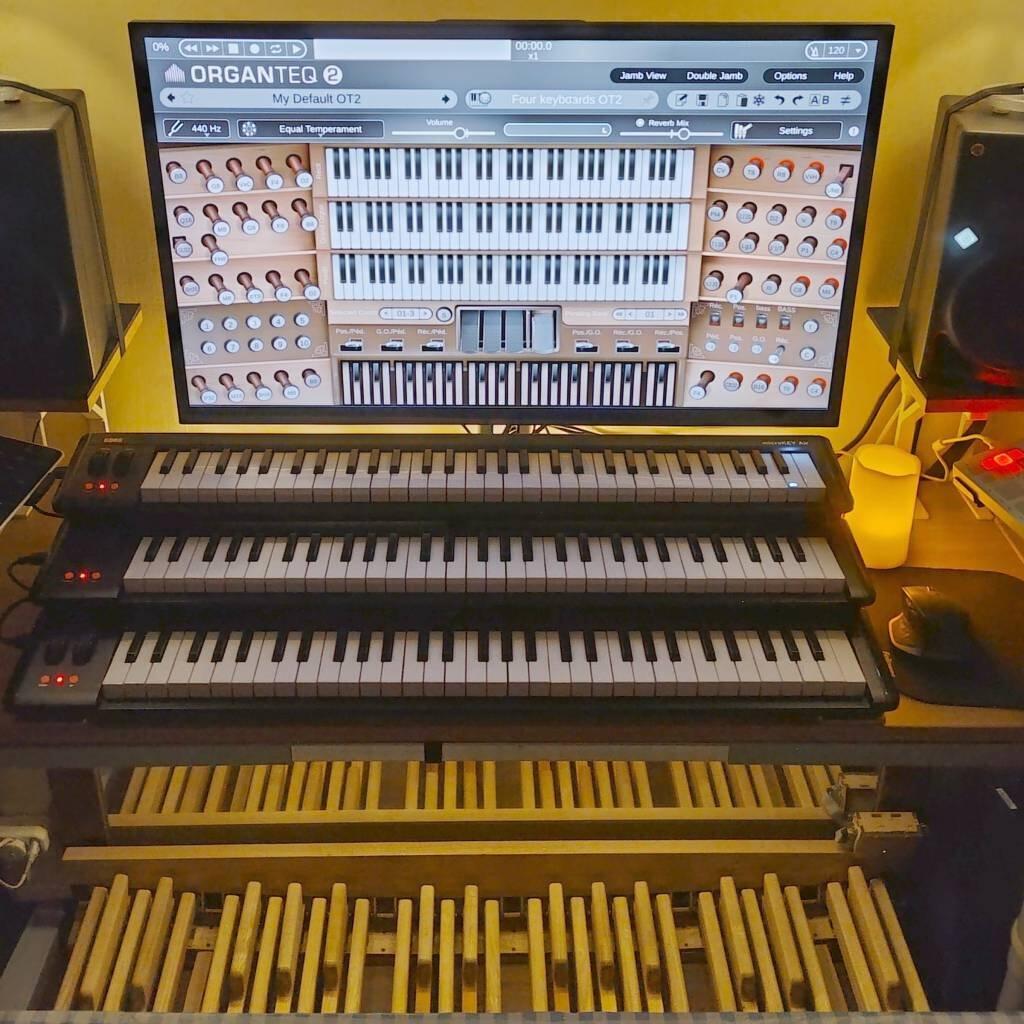
My need is a relatively large, fairly good, suitably high-resolution Debian compatible glass-fronted multi-touch computer monitor, with a stand able to accommodate my MIDI gear, and this 32" Clarity Max Touch delivers exactly that, so I give this all the stars.
While LCD as such, with its conceptual weirdness of blasting backlight into shutters, for laws-of-physics reasons, cannot compete with technologies that generates their light as needed, this panel is fine for me and 4K is my sweet spot, partly because it's a standard and party because it's enough that I can't make out individual pixels from my typical viewing distance. For me, more pixels would mostly be wasteful.
The webcam has colour noise like a 2010 smartphone. The speakers sounds like a Y2K laptop, with nothing outside 100Hz to 10kHz. The microphone array has a 16kHz sampling frequency (so no audio above 8kHz) and makes a warbling rumble, limiting its effective S/N to about eight bits of dual mono, all in all making it sound like my beige plastic 1990 PC microphone. As I don't really need them, I'm pretty happy I apparently didn't pay a lot extra for them.
Perhaps firmware updates could improve them a bit. By the way, even though the camera housing is fixed, when extended, you *can* change the camera framing a bit with a little wheel on the rear of the camera housing. The camera is fairly wide angle, so even though it, by necessity, sits high atop the monitor, as I sit a bit away from the screen, I have no problems fitting into the frame and I don't think the angle is an issue.
For video calls, for the computer to ding at me when doing something wrong, listening to the news or even some light elevator background muzak, they're okay. For a quick no-production-value information video, I might use them. For anyone contemplating serious streaming, they're more of a last resort emergency backup.
The onboard USB hub is neat and since it comes along when doing a single-cable USB-C connection (power, video, audio, touch and general USB) to a laptop, it's a great little "docking station" for an external mouse, keyboard, a USB headset, a printer, scanner or anything else you want to become available on the connected laptop without having to move any other cords. I wish the built in hub had more than two downstream ports, so I didn't have to plug a hub into the hub.
I don't own the stylus pen, so I have no idea how well a thing based on the Microsoft Pen Protocol might work in Linux. Without the folding monitor stand, which wouldn't fit on my desktop anyway, I wouldn't be able to doodle for more than a minute at a time.
Bought the 32" 4k UHD with USB C connection and at these headlines I am delighted. However the embedded audio and particularly the cam are quite a let down. Surely it was reasonable to expect a 4k CAM and HD sound as I have with my surface tablet?!! Come on product team, sort it out. As a result I now have my Surface bluetacked to the back of the screen so I can use its cam and audio by peaking it over the top of the screen. A real disappointment in the package
Brought the 32 inch touch, folding stand, and pen.
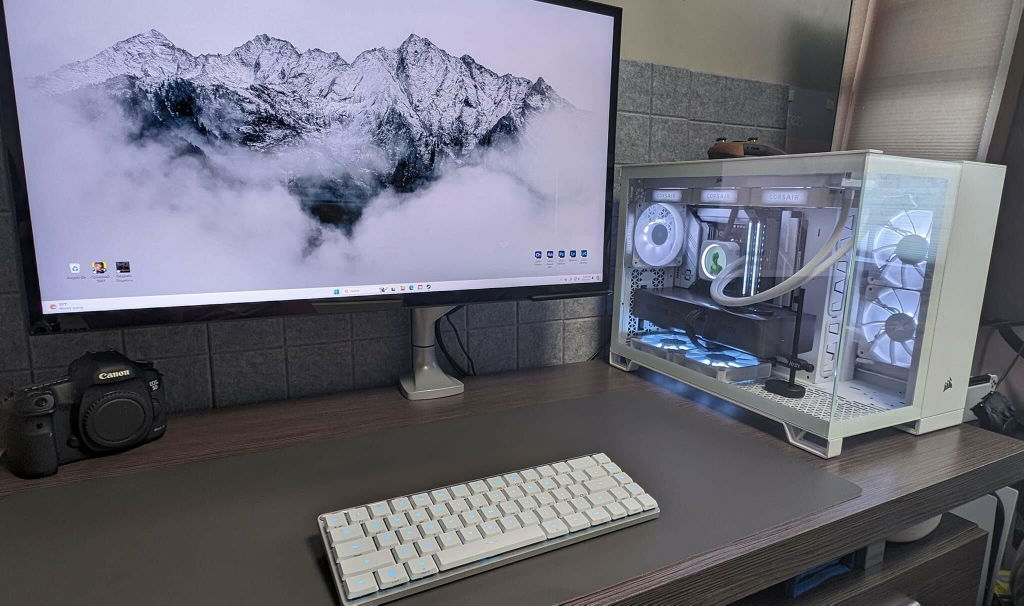
Monitor is great once you play around with the colors. Very sharp. Impressed with it. The fact I can edit photos on the touchscreen is a huge plus. The built in cam feature is garbage. It pops up and there's no way to move or angle it. You have to move the entire monitor to try to get into frame. Should just rid of that option on future models. I have a Windows computer and no USBC on video card. Had to use the regular USB cable with the display port to get touch to work.
The pen is ok. It does the job.
Do not get the folding stand if you get the 32 inch model. The monitor sits too close to the floor. It's only made for the 27 inch. Had to return and go with the a monitor arm.
Overall I'm happy with the monitor.
Clarity Fold Touch 32" 4K UHD Monitor with 65W Power Delivery, Webcam, Touchscreen & Fold Stand
Outstanding
Overall I think this is a good monitor. It does however have its challenges.
The webcam is broken as designed. It shows a mirrored view instead of a normal view and there are no driver options to correct it. Speakers are good enough for system sounds and even most music. A power cord and a thunderbolt 4 cord are all it needs to connect to your computer. Windows 11 recognizes it and mostly it is beautiful. I get occasional flashes and every once in a while, when working with Teams the monitor will blank out completely for a second. I'm hoping new drivers will come out and correct the webcam and screen issues.
Took 2 months to arrive
resolution great, touch sensitivity very good….and it looks great! Highly recommended.
Great piece of kit , apple should be very concerned , best value bang for your buck monitor in the market .
Clarity Max Touch 32" UHD 4K Monitor with USB-C Power Delivery, Webcam and Touch Screen
Deze monitor is geweldig. Door het 32 inch formaat kun je de bewerkingen in Adobe Lightroom heel goed zien en uitvoeren. De kleuren zijn echt geweldig. En met de pen kun je touch screen werken. Fantastisch. Ik ben heel blij met deze 32 inch monitor .
I was a little concerned after reading some reviews about this monitor, saying the display was dark, however after setting up the brightness and gamut this was not an issue. The Alogic monitor is excellent. Having the touch screen is an added benefit. My only minor gripe is the speakers. I think they could be improved that’s the only reason I gave 4* rating. All in all this is a wonderful display and well worth looking at. No pun intended.
Forget Apple, this product is way better
I love touch screen and had to have this one when I saw it. The touch screen is great and bright. I have a Microsoft Surface Pro 9 and was happy to find out that I could use the Microsoft stylus with this screen. I wish the drivers for Mac to add some off the Creative Cloud features to the touch screen were available for Windows, but oh well.
A bit hard to understand the configuration and all the possibilities, New Mac Mini M4. Super good. thank's
Great Monitor, even better customer service!
professional / perfect
Not expensive but not good.
The colors of the screen connected to a MacBook Mini are ugly. In some situations, the screen shifts to B&W, and finally, the microphone does not work well!
Clarity Max Touch 32" UHD 4K-skærm er en yderst god skærm og de indbyggede højtaler er også i ok stand. Den indbyggede mikrofon og indstillingerne for webcam kunne godt være bedre. Samlet set en virkelig god skærm
Excellent touch screen. Webcam is not upto the mark and should have been better. Nowadays 4K Webcam has become a basic necessity.
The screen is amazing and is all that's promised except for one issue. The USB C connection is needed for touch screen to work.When connected to a PC (Geekom mini form) the computer will not wake from sleep. I need to be connected to HDMI which doesn't support touch screen functions. You need to connect the additional USB-A or USB-B to get the touch function. I didn't see this in the instructions but I'm male... don't really read them! Their online chat support helped me in 2 minutes... after my IT contractors coudln't resolve the situation. I'll be giving them some grief... but if the information isn't available then I can't blame them entirely.
Very please with the quality and look of the 32” monitor. Great value.
So beautiful
From All the advertising and presentations, I expected for this monitor to be much better.
Made a mistake to buy!!.... colour calibration is quite poor, starting-up is quite slow and the touch-screen fearture is not what is made to be.
Nice screen, slightly less brighter than expected - does not have that vibrancy we would hope for in certain applications and workstreams.
Have colour matched to adobe and set up for Mac but still slightly lacking in nits.
Overall a great product.
Josh
Great 4K monitor. I use it for laying out my spreadsheets and Word documents - beautiful resolution. Unfortunately, the webcam is pointless on such a high/large monitor. With the monitor arm all the way down, you'll still need to be quite tall to see your neck based on where the monitor is positioned. The tilting angle just makes you look weird on a video call.
Nice!!
Great