

 UK
 USA
 Canada
 Australia
 New Zealand
 EU
 Japan
 Singapore
 UAE
 India
 South Korea
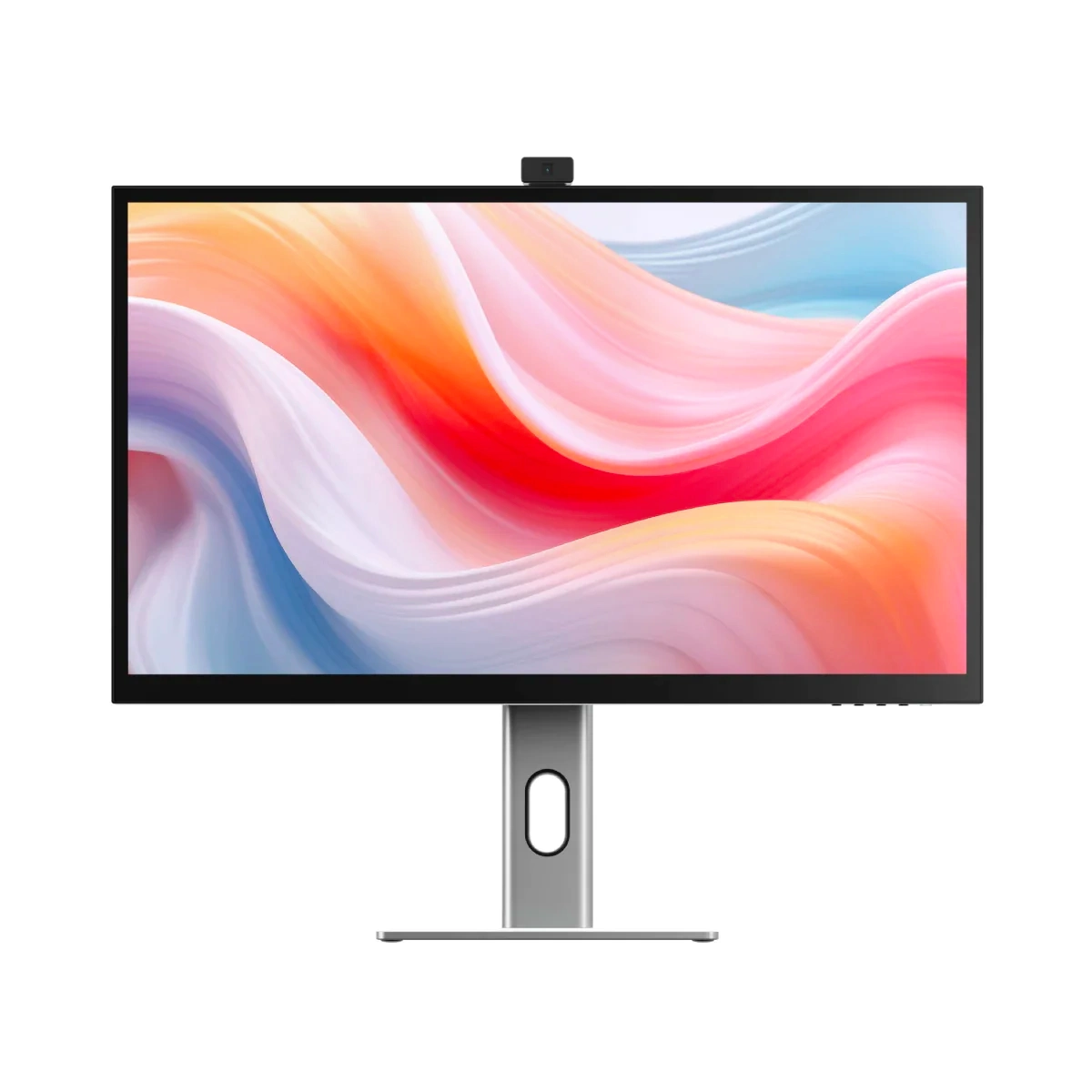
Clarity Pro 27" UHD 4K Monitor with 65W PD and Webcam


Couldn't load pickup availability
Specifications
Specifications
Downloads
Downloads

“Alogic Clarity Pro Touch Display – Best touchscreen display for Mac”

“Alogic's New Clarity Pro Displays Include a Retractable Webcam and Optional Touchscreen Functionality”

"Alogic’s Clarity Pro Is An Affordable Alternative To Apple’s Studio Display"

“Alogic Clarity Pro touch: Making Macs all touchy-feely”
Clarity Pro is a non-compromise display for artists who demand the best.
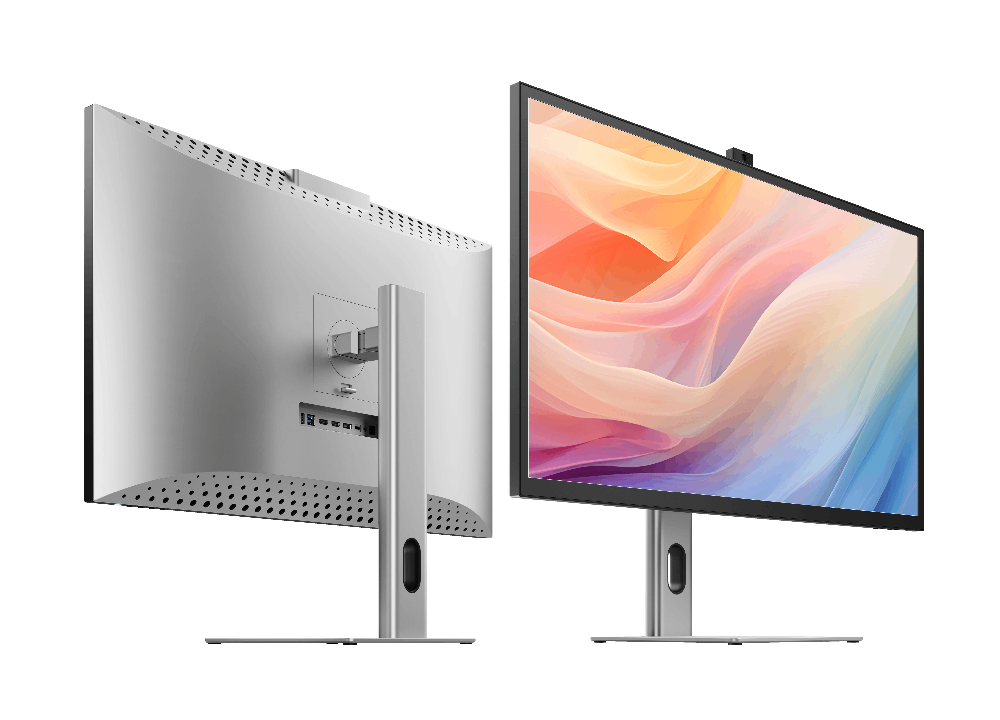
Our 27” studio-quality 4K display presents your work in perfect colour, while its automatically retracting 8MP webcam only shows your best side.
Clarity’s USB hub lets you connect to your workstation with a single cable, saving your focus for your next masterpiece.

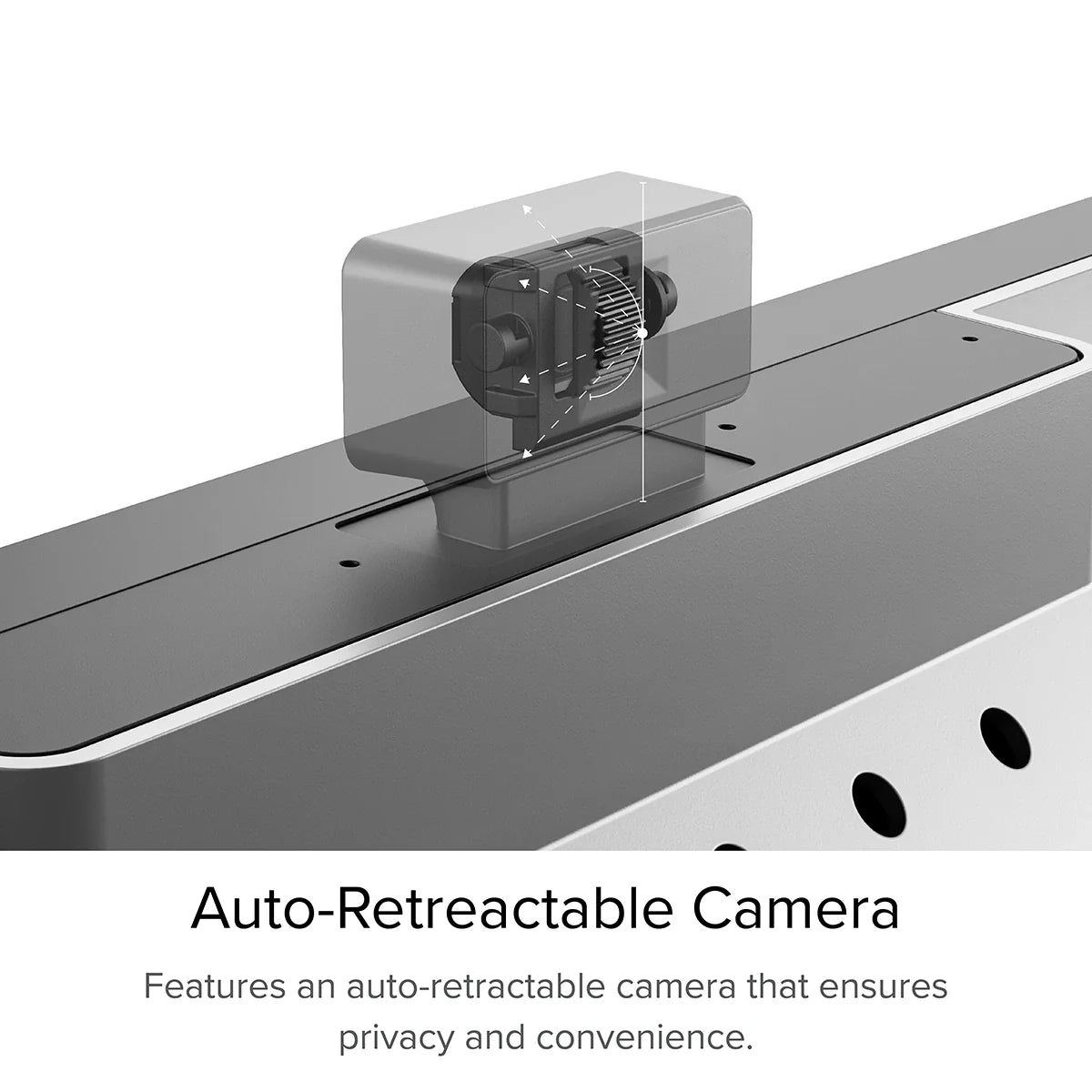
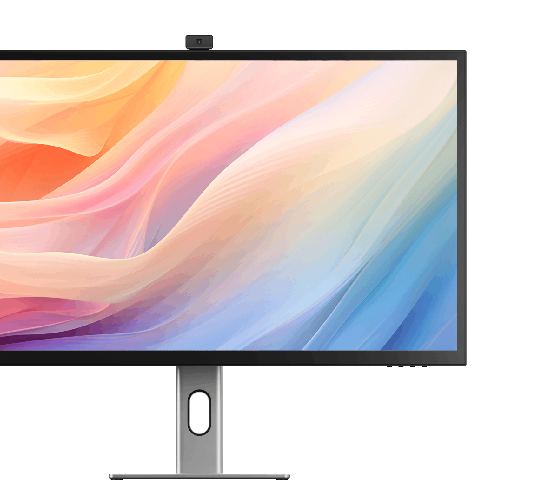
Clarity Pro’s smart webcam stays hidden until you start a video call, then automatically slides back down again when the meeting ends, protecting your privacy and keeping the lens clean for a pristine 8-megapixel picture.
With Clarity Pro’s 8MP auto-retracting webcam you’ll look stunning – but only when you want to.
The webcam’s angle is easily adjusted via its rear scroll wheel, ensuring you’re always the centre of attention. It takes just seconds to dial in your best angle with Clarity Pro’s webcam adjustment wheel – but the impression you make will last a lifetime. Say goodbye to all your laptop webcam’s awkward angles and hello to your best look.


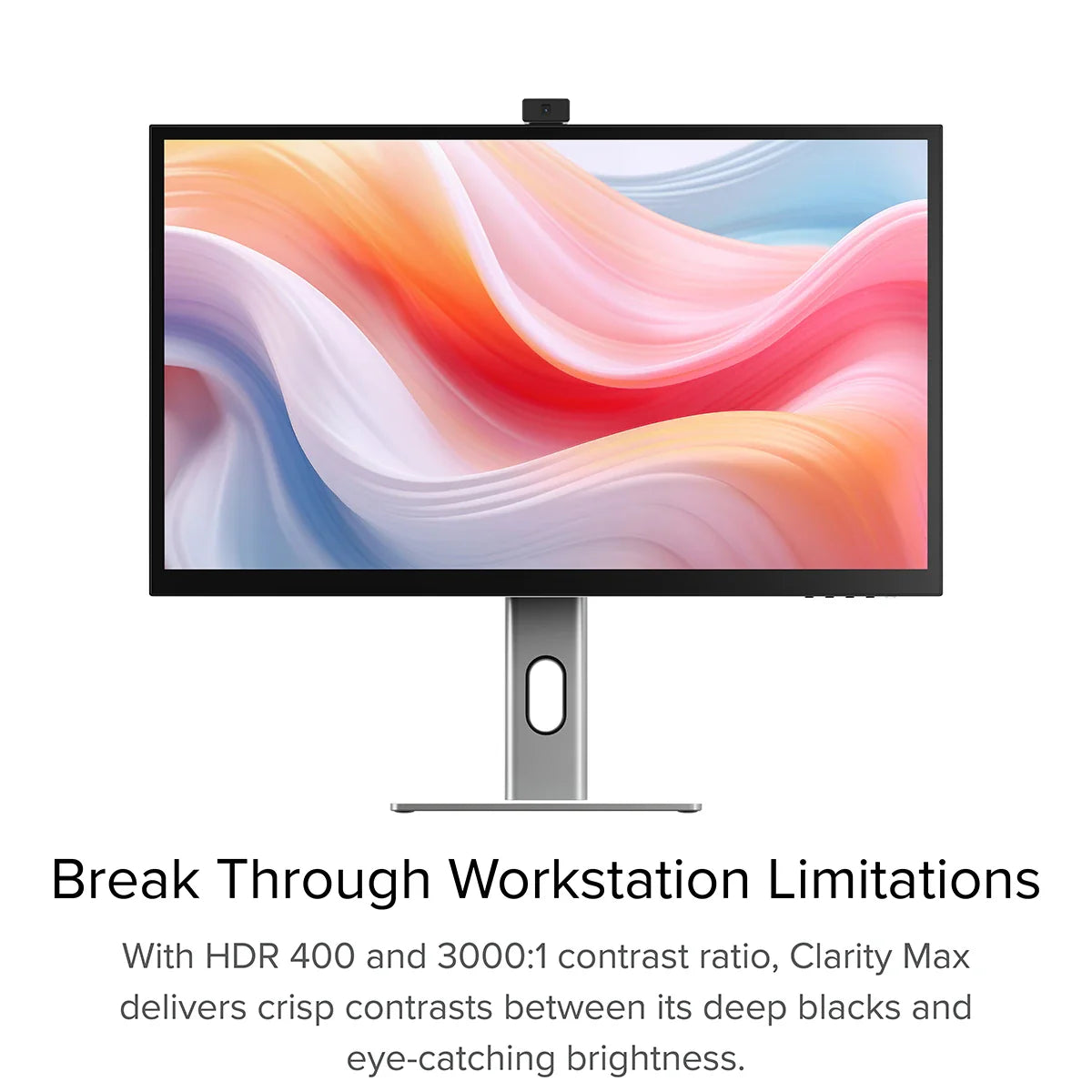
Exhibit your craft like never before with more than one billion colours across Clarity Pro’s breathtaking 27” 4K screen. Its exceptional colour gamut, vivid 350 cd/m2 brightness and sharp HDR contrasts make it a powerful tool you can stake your creative reputation on.

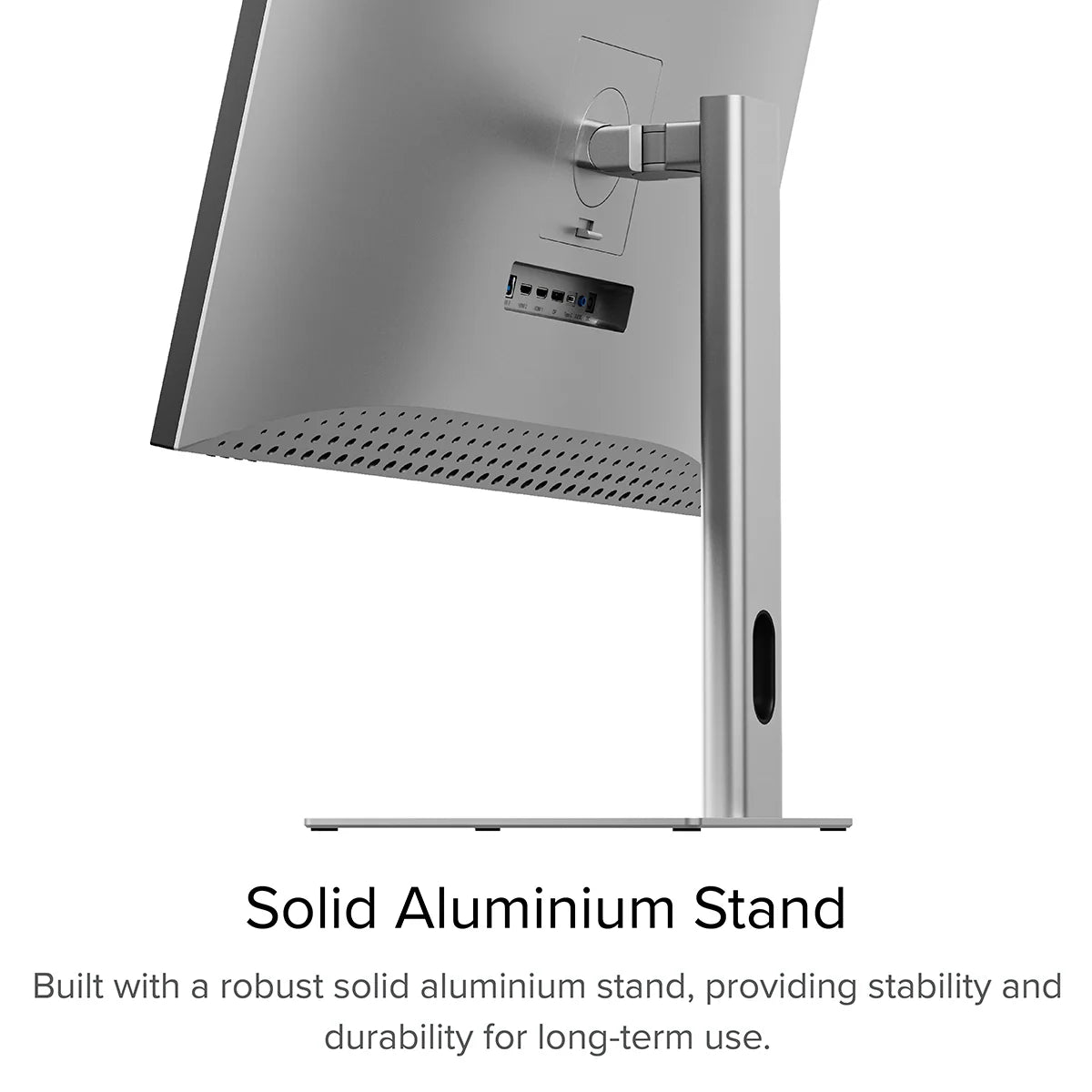
- USB-A
- USB-B
- HDMI
- DisplayPort
- USB-C
- Audio Output

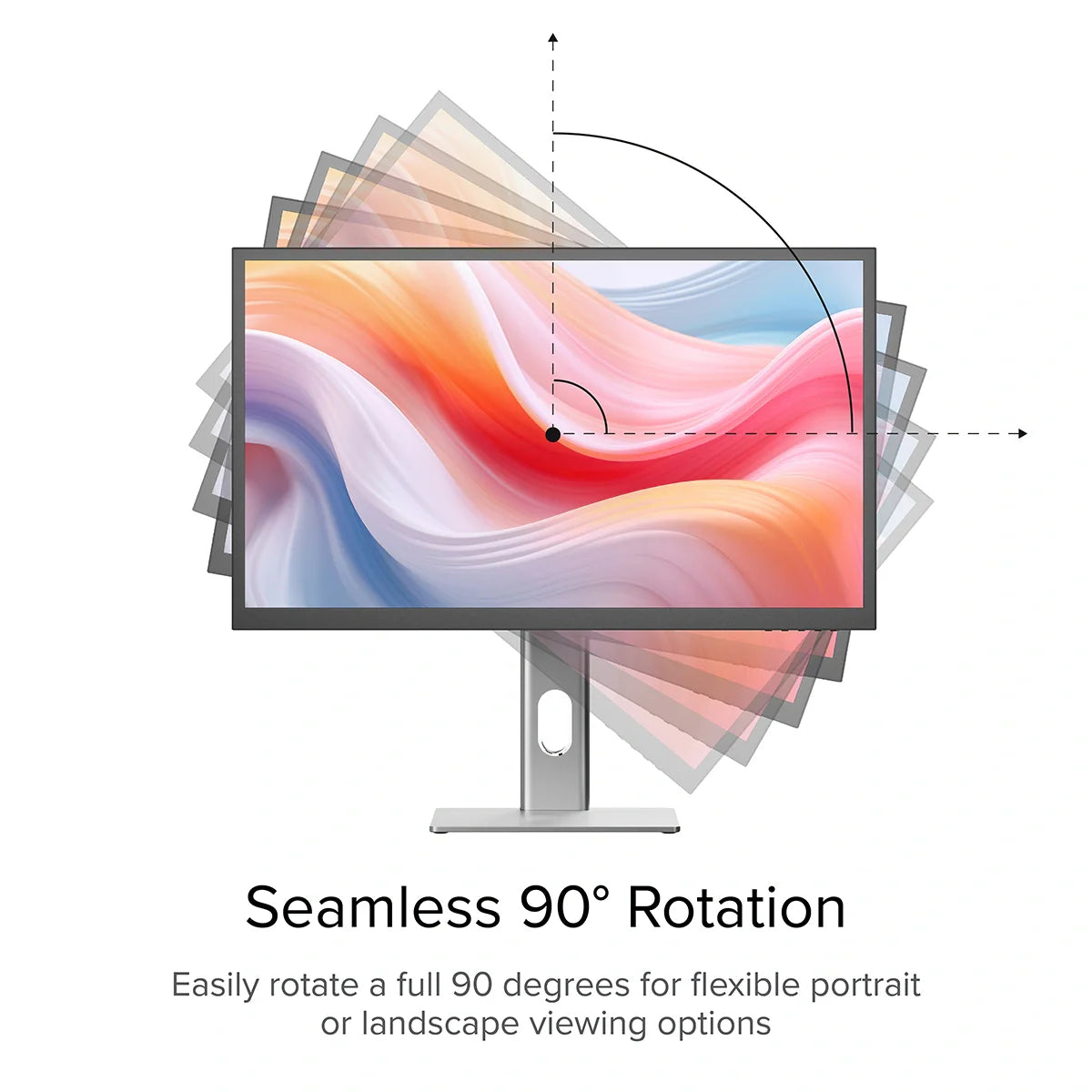
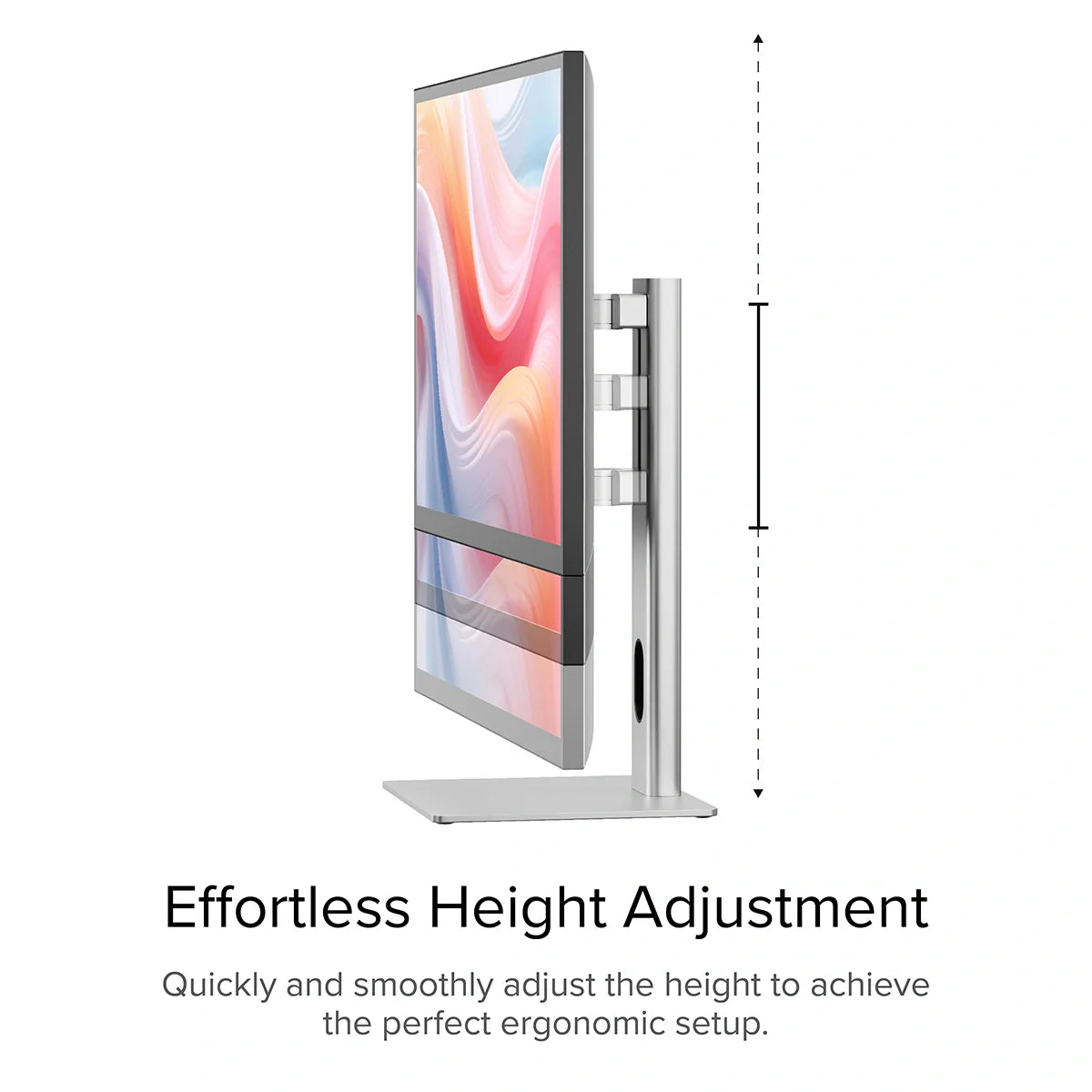
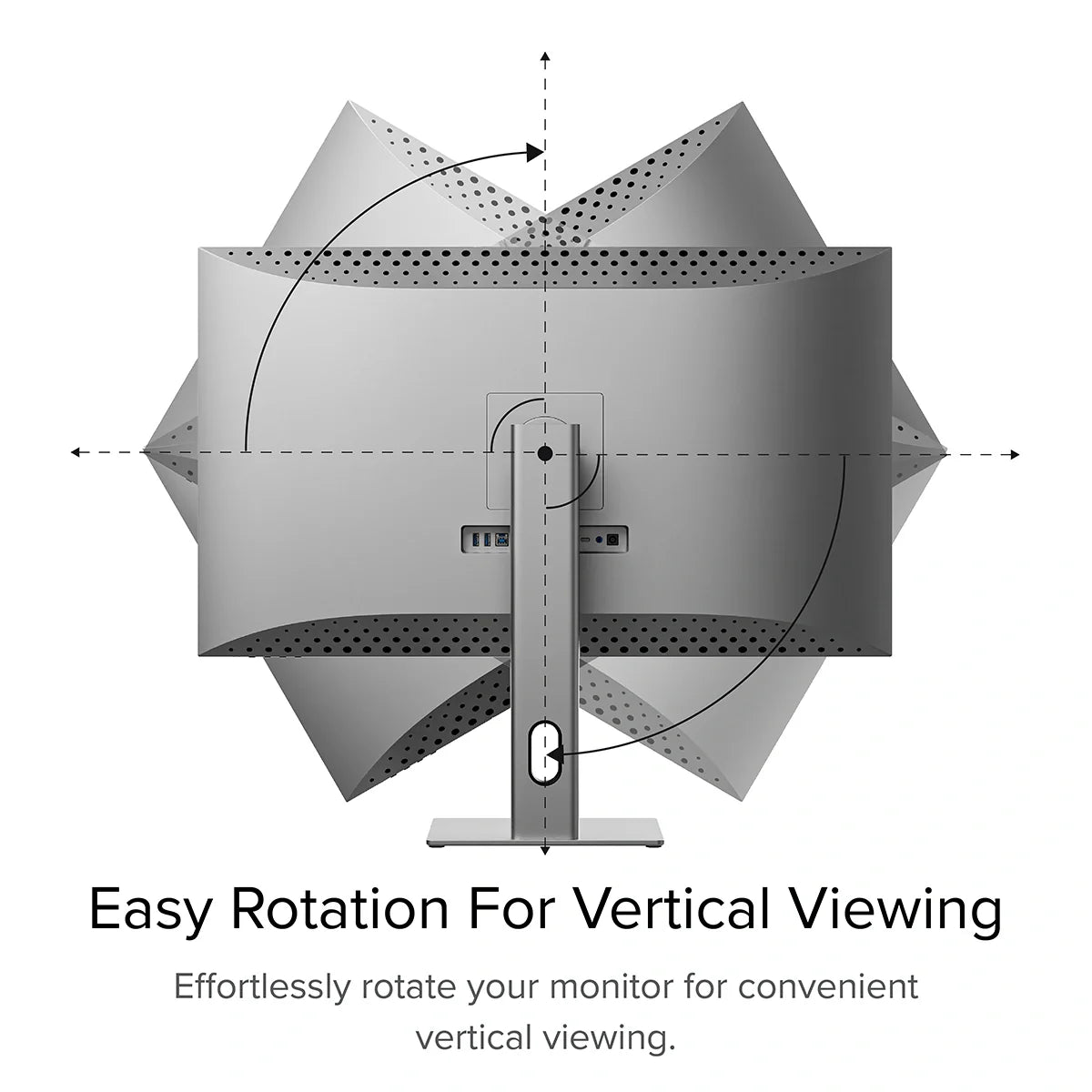
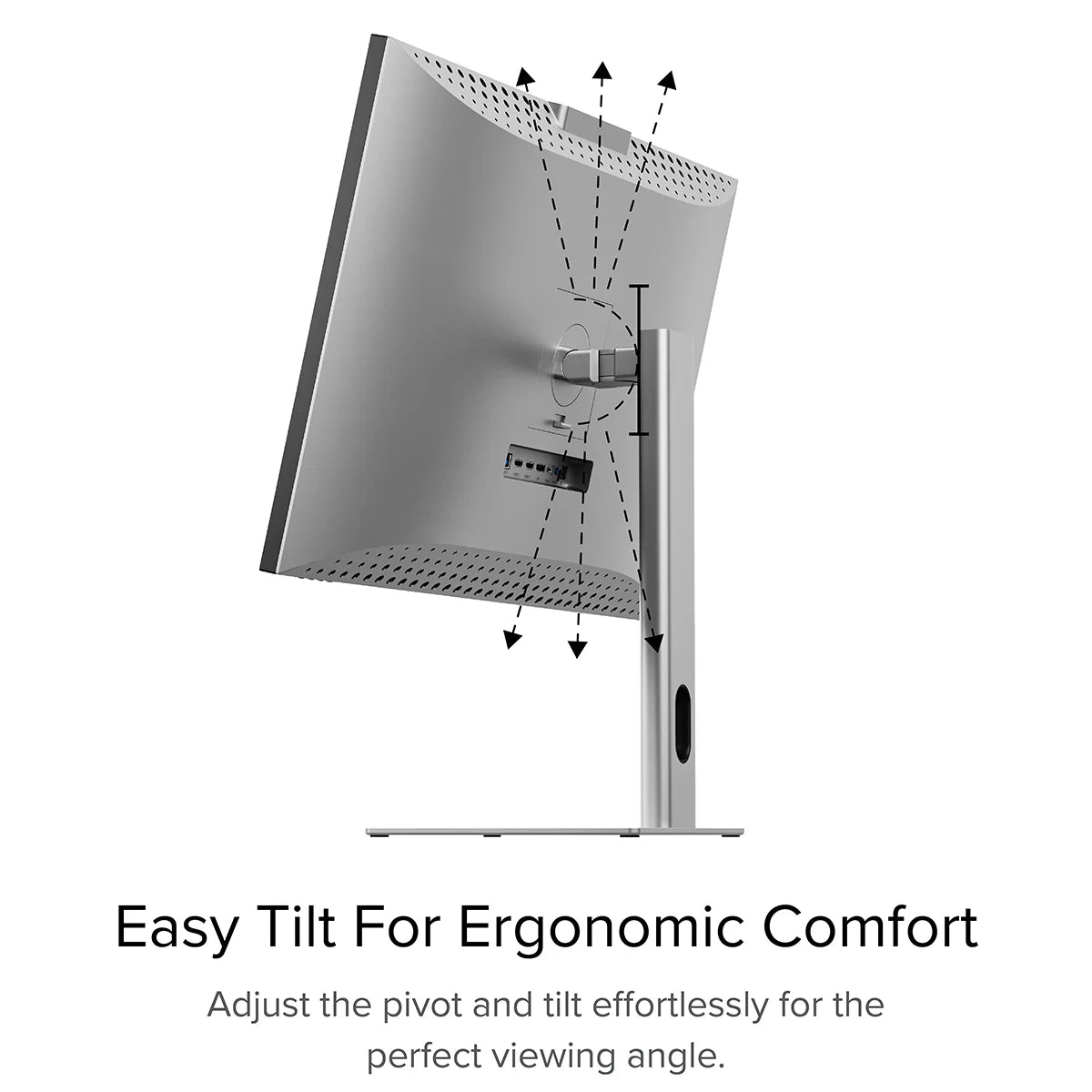
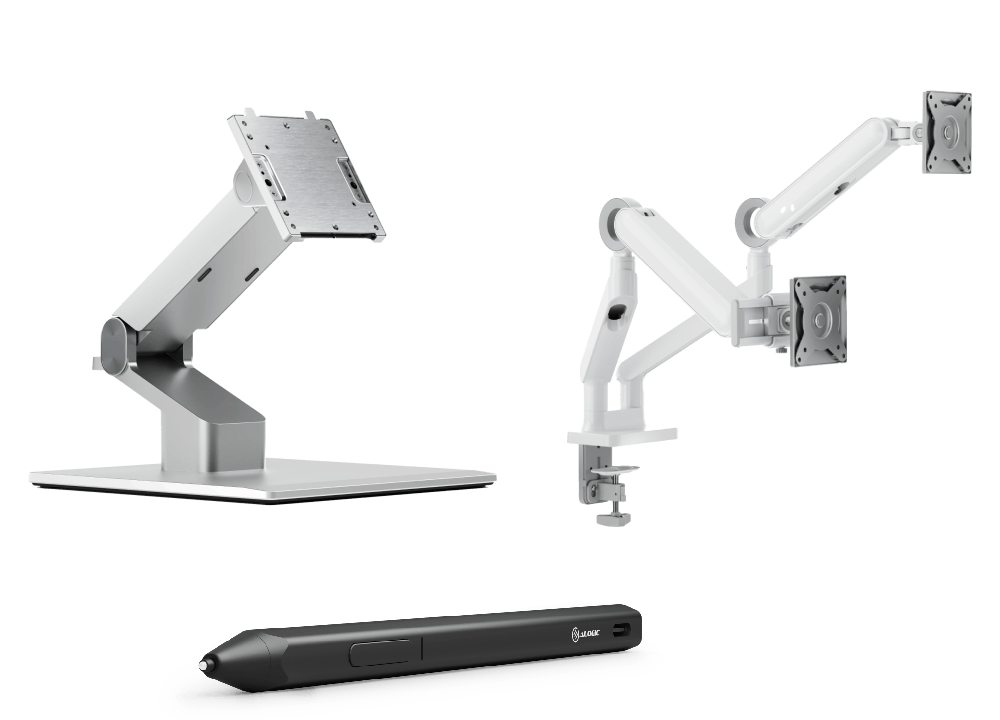
Our aluminium stand makes it easy to position Clarity Pro exactly where you need it, letting you raise, pivot, tilt and swivel the display for ergonomic comfort.


The CLARITY also features In-Plane Switching [IPS]. IPS display panel technology enables workplace teams to view the same screen from angles up to 178 degrees [almost completely sideways], without diminishing image quality.
With Clarity’s smart rotation sensor, it takes just seconds to switch from landscape to portrait, perfect for editing vertical video,answering emails or monitoring a livestream. When you’re done, switching back is just as easy.



General
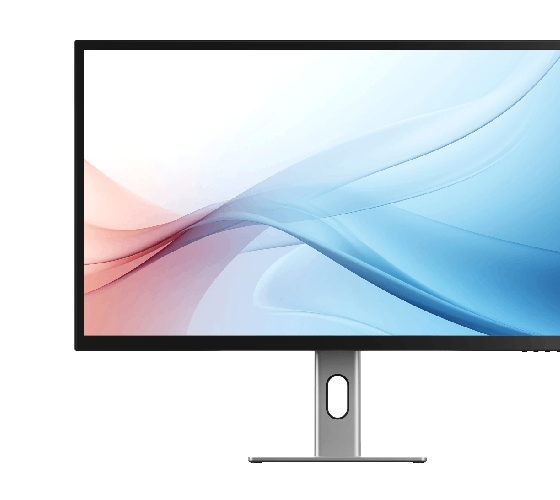
The key difference between Clarity and Clarity Pro is that Pro has an 8MP webcam built into the monitor.
This smart webcam automatically slides up from the top when you start a video call, then slides back down when the call ends, keeping the lens clean and protecting your privacy.
Clarity Pro Touch has both the inbuilt webcam and a ‘one-glass solution’ 10-point touchscreen.
The formula is: Clarity (4K studio-quality monitor) + Pro (smart inbuilt webcam) + Touch (touchscreen).
There’s one other difference between Clarity and Pro/Pro Touch – they can’t charge your computer quite as fast, with only 65W passthrough charging compared to Clarity’s 90W. This is because 25W need to be reserved for the webcam.
However, it does need to plug into a USB-C port compatible with PD (Power Delivery) on your computer.
These can sometimes be identified by the presence of a battery icon next to the port on your laptop, but often you’ll need to check the user manual or manufacturer’s website to figure out which USB-C ports support PD.
All Thunderbolt 3 and 4 ports support PD.
1. Connected to Clarity via either:Clarity's USB-C port or Clarity's USB-B port
2. Clarity "Active USB" mode is set to the same USB port you've connected to your computer.
To change Clarity's "Active USB" mode, navigate to "USB Switch" in the "Other Settings" menu of Clarity's main menu.
For example: if your computer is connected to Clarity via USB-C, you would select "Type-C" in the "USB Switch" menu.
Remove the stand stem and base from their protective bags. Slot the stem onto the base and fasten via the thumb screw underneath the base.Align the two latches at the top of the stand stem with the notches in your Clarity display, with the display still in the foam housing. Gently push the rear plate into Clarity, it will click into place.Lift your monitor out of the foam, ensuring the display's weight remains supported.
Webcam
As a result, the webcam will work with any program attempting to access a webcam.
This includes videoconfering programs such as:
Microsoft Teams
Skype
Google Meet
Slack
Cisco Webex
Zoom
GoTo Meeting
As well as livestreaming programs like:
Open Broadcaster Software (OBS)
Xplit
Streamlabs
Open a program which requires the webcam – on Windows 11 we recommend the “Camera” app or “Photo Booth” on macOS.
Open this application and switch the active camera to Clarity Pro’s – this can be done via the “Camera” menu in Photo Booth or hitting the “Switch Camera” button in Camera – see below.
Once you’ve activated Clarity Pro’s webcam, it will slide up out of the monitor. You can now adjust its vertical framing using the scroll wheel on the rear of the camera.
Then you need to ensure that's the active USB port is set to the same - either USB-C or USB-B. This can be set via the "USB-Switch" setting of the monitor's "USB Options" menu.
If these two are correct and your can't see your Clarity Pro's webcam listed in your system's available webcams (listed as either 27C4KPDW or 27C4KPDWT), restart the monitor and your computer.
If the webcam still doesn't appear, please contact ALOGIC support: support@alogic.co and we'll help you resolve your issue.
Troubleshooting
To resolve the issue, restart Clarity by pressing the power button twice – it should recognize the connected device as part of its boot-up sequence.
If this issue persists, we recommend trying the following steps to isolate the issue:
Connect Clarity directly to your computer
Try connecting with a different cable or port.
ie. Use DisplayPort instead of USB-C
Update your computer’s operating system.
If your problem reoccurs and these these steps do not help resolve it, please contact ALOGIC support (support@alogic.co).
1. You're connecting to Clarity with USB-C. HDR is only available when connected via HDMI or DisplayPort.
2. You're using the monitor in SRGB, Uniformity or Adobe RGB mode. Both of these video presets are designed to provide perfect colour reproduction over a limited colour gamut. HDR produces colours outside these limited gamuts and thus can't be used at the same time. You can re-enable HDR by switching back to "Standard" mode in the Professional Settings menu.
Ensure you connect the charging cable to a port on the laptop which supports charging.
I ordered the 27" touch-sensitive monitor on Monday, 8 January, and it was delivered on Wednesday, 10 January. I will use it with my MacBook Pro (m1 processor) and older MacMini (intel processor). I had one query and received a courteous (and correct) answer by email within one hour.
The display has beautiful, clear, vibrant colours. The webcam works well, and the touch sensitivity is excellent.
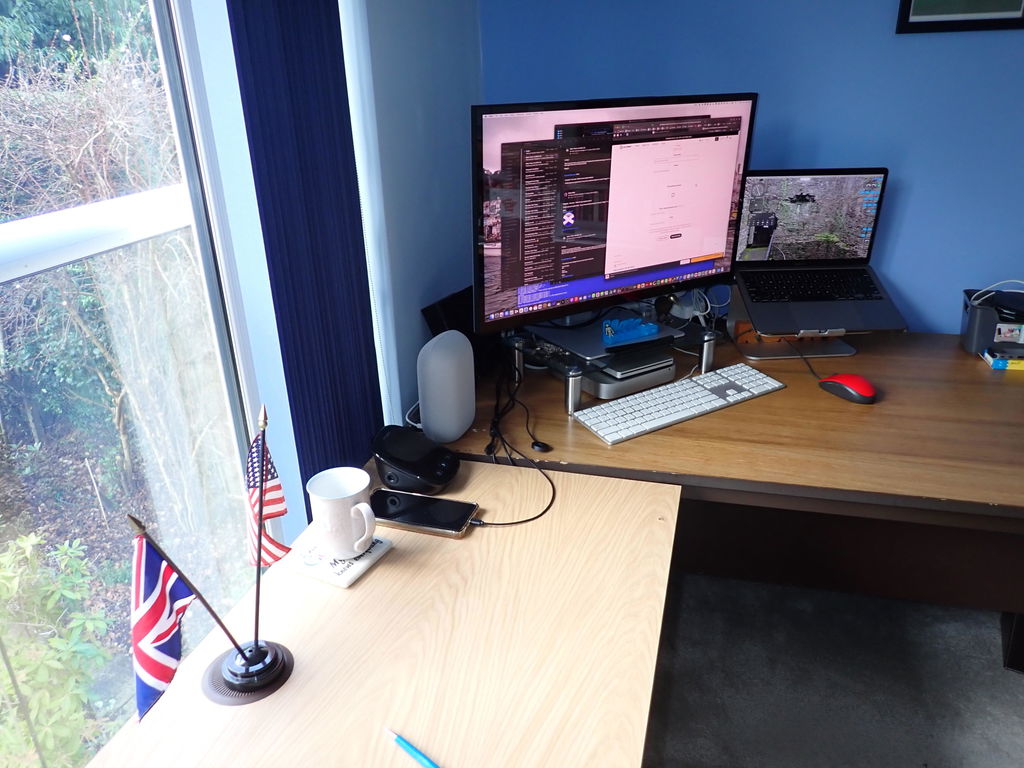
Great monitor, really good colour, the camera is great and easy to use. I set it up for my Windows PC, as long as I open the "Camera" app, the camera automatically pop up (Note that to make the Camera works, it requires to connect the USB-B on Monitor to USB-A on PC)
Monitor is great - colour is really good. Only challenge at the moment is the camera - I cannot get the settings to work properly and the colours are not good
The monitor seems good and works well with my MacBook. But I was overcharged on my credit card and delivery took a month (not the 4-8 working days promised) without any updates from Alogic. Delivery was disappointing. Better service would make this a lot better!
This monitor upgraded my previous setup, a 27-inch LG at 2560x1440 with an external Logitech C925 webcam. It delivers on all fronts: image and colour quality, 4K sharpness for coding, brightness control via MonitorControl, and a clean minimal profile thanks to a retractable webcam.
Setup required a firmware update to fix the camera not retracting after calls, but was straightforward. Otherwise it works flawlessly over HDMI with two 2024 MacBooks, even through a KVM switch, reassuring for Mac users with multi-computer setups.
I wall mounted it via VESA and the camera tilt provided enough range to frame me correctly. Default colour settings needed tweaking, but the free LogiTune app on macOS handled this perfectly.
At this price point it fills a specific market gap: 4K, HDMI compatible, with a genuinely clever integrated webcam. Minor issues like the unlabeled OSD buttons become irrelevant once set up.
A great, good quality monitor to pair with my M1 MacBook Pro. Clear and vibrant. Just what I wanted. Webcam is excellent too
Awesome product
I'm so glad I took a chance on this somewhat unknown computer monitor... I absolutely LOVE my new Clarity Pro 27 !!!
Good screen, may be a little too bright, good color rendering, adjustment keys are not practical to use
Unfortunately I haven't unwrapped it yet. But the desk is definitely on route to me now as I speak. Just cannot wait to see what this monitor can really do if I am brutally honest with you. Thank you so much.
Faithfully Stuart
So...couldn't quite afford the Apple Mac Studio display... so this ALogic Clarity Pro, after much research seemed like the best choice.
I'm going to keep this short and sweet:
1) Beautiful monitor - screams quality very well built, like my Mac Mini.
2) Gloss screen = absolutely INCREDIBLE details. It's as clear as clear can be - super happy -not a pixel in sight.
3) 4K resolution - never need more or would need glasses.
4) Colours are just unreal, WOW. This monitor is most definitely a designers monitor - there are inbuilt colour profiles, be sure to switch out from the default 'reading' profile for it to come to life.
I'm blown away by the connections, features and image quality. I downsized from a Ben Q PDQ series designer monitor and have to say.... this thing excites me and brings things to life!
Keep up the premium products ALogic! Especially the Clarity series.
This monitor is superb, picture and colours are crisp. I was stuck between selecting this or the apple display and I am so happy with my purchase. definitely recommend.
I made the switch from Mac to Mac Mini (M4). I am overall happy, but:
- You need a mouse/keyboard/webcam: those all come with a Mac, for which you pay a heavy price. But in hindsight I appreciate its complete integrated package.
- Mac has great internal speakers. I am mostly very satisfied with the Alogic monitor (colors, design, materials, the glossy screen). But major drawback #1: cheap, bad quality speakers. It just doesn’t belong with such a nice monitor! Bought basic Pebble speakers – but external speakers give me echo issues with video calls.
- Drawback #2 is the adjustments of the screen, with the buttons under the monitor, not very easy to use.
- However, I am using the mouse/keyboard of my former Mac for the Mac Mini and can get a new component anytime.
- Would I do the switch to Mac Mini again? Yes! Would I get an Alogic monitor again? If they would change the speakers, definitely!
Jeg har købt en med touch og 2 uden touch og der er fantastisk billede på dem alle sammen ☺️
I’ve never seen an Apple monitor in action and I must say, the price of the Alogic Clarity led me to give it a try. The monitor is fantastic, especially with USB C cable. Colours are a slightly different with the HDMI cable but it's not a deal breaker. If I could go back in time I wouldn’t pick the one with the Webcam though… I feel like the quality of webcam and speakers could be a bit better so I still use the webcam from my MacBook Pro when on calls. But overall, very good screen and very good price.
Clarity Pro 27" UHD 4K Monitor with 65W PD and Webcam
Beautiful and excellent monitor! Love the look, the image quality and the flexibility to adjust height and angle.
Il monitor 27” ha ottimi colori ed ottima risposta con il mio MacBook pro16. Per adesso l’acquisto sembra ottimo
High quality screen.fantastic design. Easy installation. 1 more star when i will manage to pull off the webcam
Just got in and powered up my new Alogic Clarity Monitor. Seems quite nice, like the ports in the back USB-C, DP, HDMI, USB-B and the other USB ports...colors are quite nice and vibrant, looking forward to using this to the best of my abilities, time to up the game. Like the stand for this, quite versatil, 180º tilt, USB-C is 90watts of per to charge iPhone etc... Thanks
Screen quality is very high!!!
I am very pleased. Good alternative to the studio display. Only the display settings are a bit difficult.
Wir haben drei Monitore bestellt, bei einem war ein richtiges Netzkabel dabei, bei zweien ein englisches und ein amerikanisches :-(
Ansonsten tolle Geräte, die wir im Grafik-Design einsetzen.
It's a beautiful monitor, but the webcam cannot be adjusted low enough to get you in the full screen without the need to tilt the monitor to aim it even lower unless you slide the whole monitor down, which then kind of defeats the purpose of the camera being adjustable in the first place...
Clarity Pro 27" UHD 4K Monitor with 65W PD and Webcam
this monitor has an excellent picture.
If you have multiple screens, make sure you always use the same model. Otherwise there would be color differences between the monitors.
But I would always recommend this screen.
After my 10 year old Cinema Display gave up, I looked at the Apple Studio but the pricing is just way too high, especially once you option it up.
I chose this Alogic Pro monitor instead, mostly for the aesthetics but also because I think its' from an Aussie company and being Australian I think that's great. The monitor is really clear and bright with thin bezels. The metal base looks great and paired with the thunderbolt dock is really easy to use. The only thing wrong which is why I docked a star, was before I switched on HDR I was finding the colours were fading in/out, it was really distracting, I was close to returning it. I"m not sure if it was just my monitor or some setting, but once I switched HDR on it seems resolved and the colours are back to solid. All up I'd recommend this as a good, budget friendly, alternative to the Studio. It's a worthy replacement for my Cinema Display, and the aesthetics complement my Apple Mac Pro and peripherals.
The monitor is very sharp. The only problem is it is not providing power via usb to my laptop.