

 UK
 USA
 Canada
 Australia
 New Zealand
 EU
 Japan
 Singapore
 UAE
 India
 South Korea
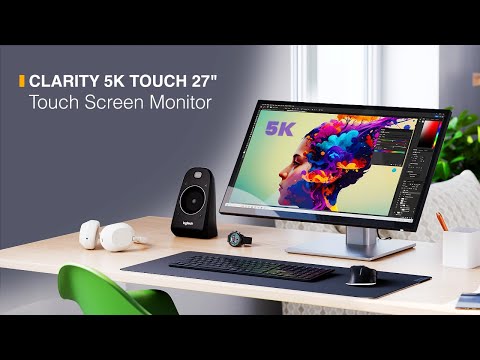
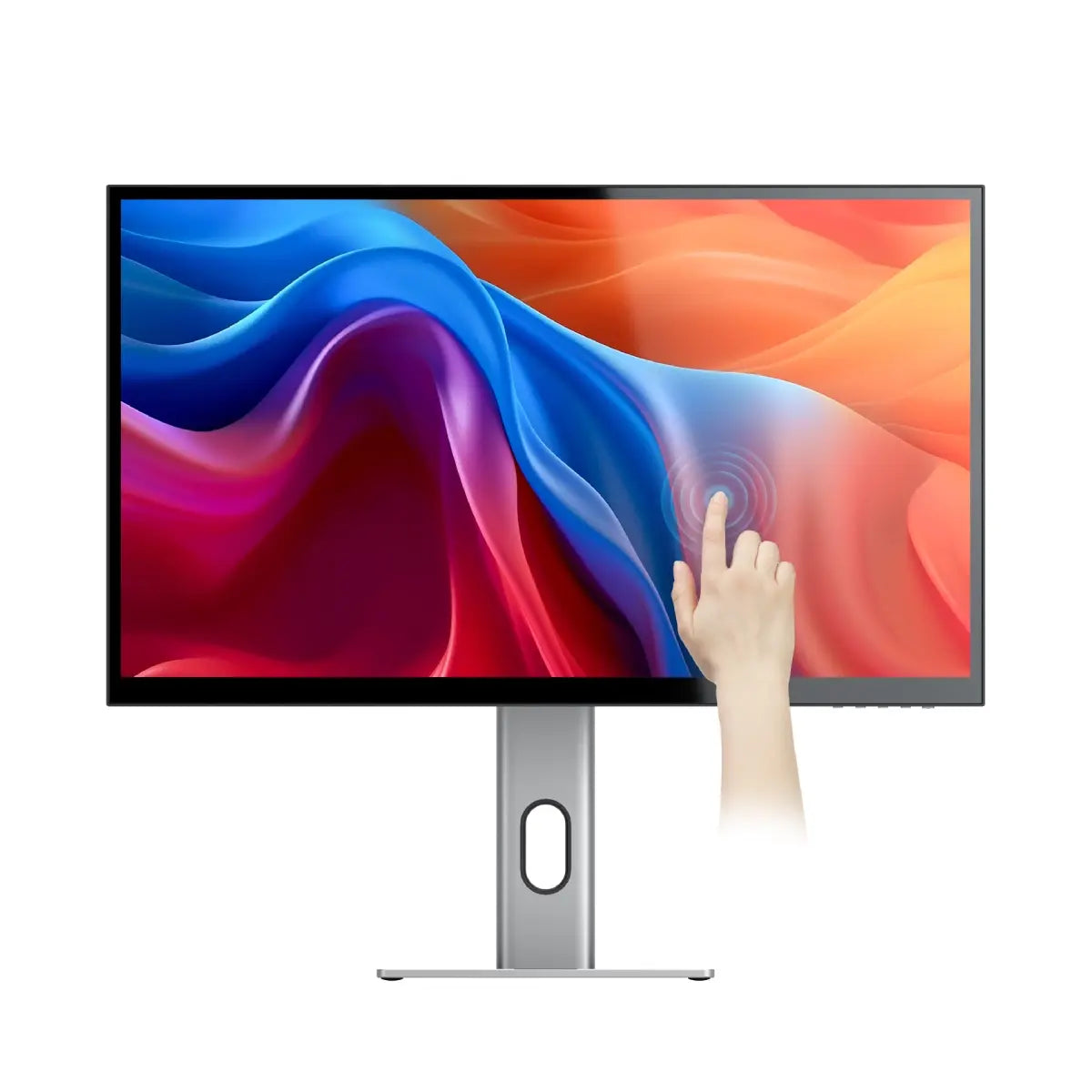
Clarity 5K Touch 27" Monitor with USB-C Power Delivery and Touchscreen


Couldn't load pickup availability
Specifications
Specifications
Downloads
Downloads

“Alogic's Clarity 5K Touch Delivers a Sharp High-Resolution Display With Touchscreen Support.”

“Alogic's innovative new Studio Display competitor combines 5K resolution with touchscreen functionality. Also includes USB-C power delivery and a highly adjustable stand.”

“If you like to work directly with the screen and want to invest in the active pen and the folding stand, this gorgeous 5K display is sufficiently colour-accurate for most creative users. Being that close will also enable you to experience 5K correctly.”

Artists and video pros will appreciate the higher 5K resolution of this premium 27-inch touchscreen display with a fantastic height-adjustable, tilt and pivot stand, and impressive color specs.

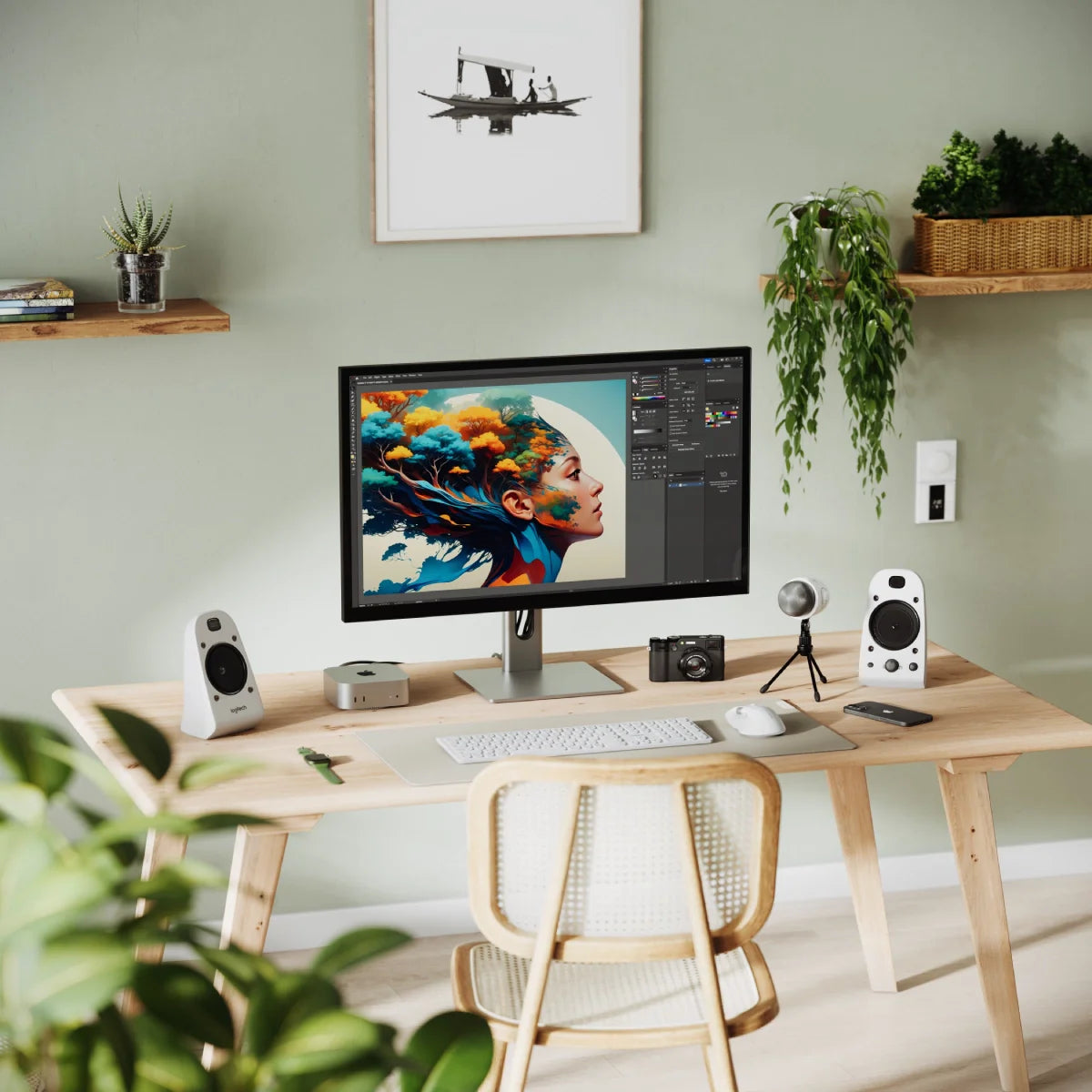
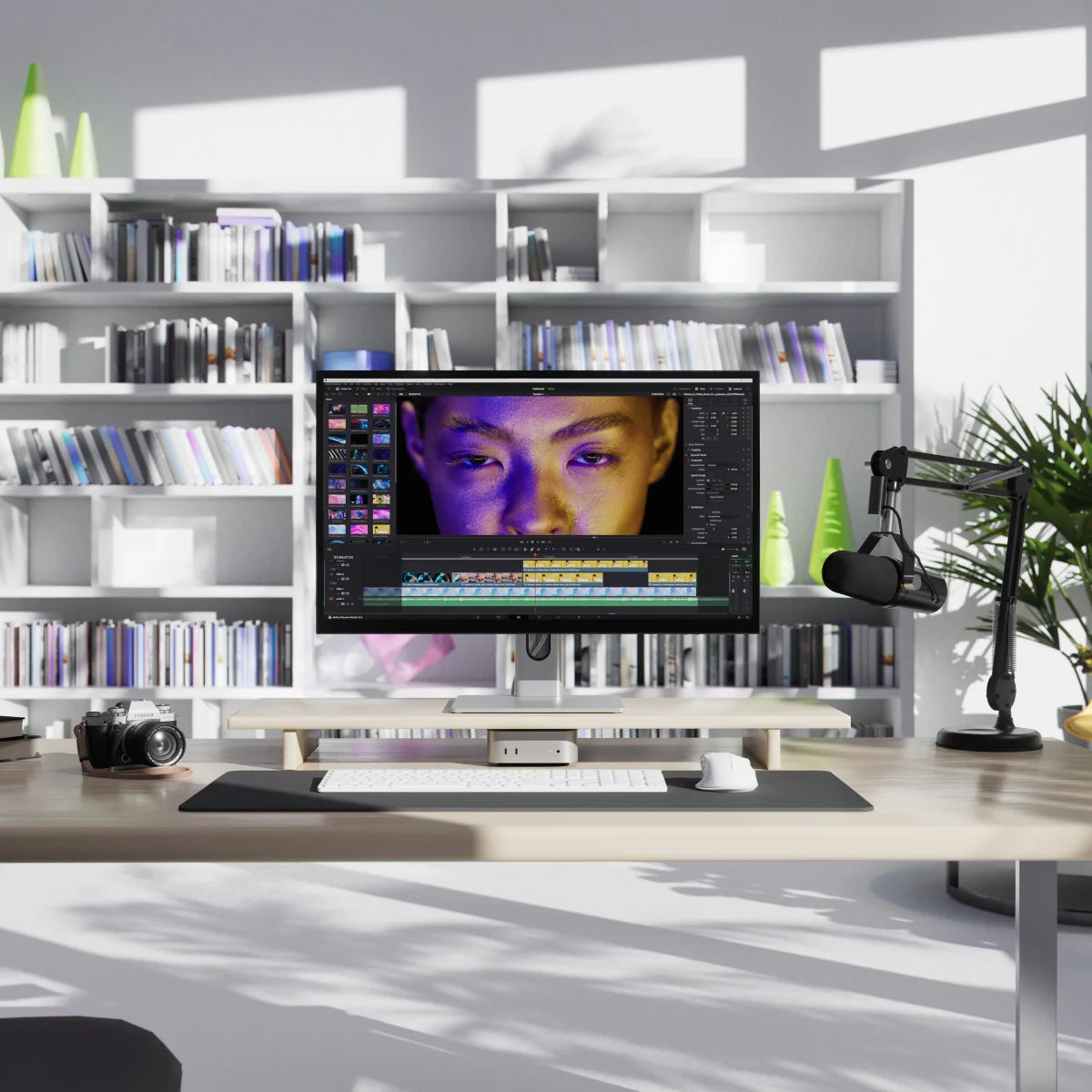
Transcend the limits of 4K with Clarity 5K’s intricately detailed, colour accurate visuals which you can reach out and touch like an iPad™, or paint onto with our pressure-sensitive Clarity Active Stylus.
Clarity’s 5120x2880 resolution isn’t just easy on the eyes, it also expands your digital studio by 33% over a 4K monitor, giving you more space for what matters. If you’re upgrading from a 27” 2K monitor, Clarity 5K will double your working space, without occupying any more space on your desk.

With 77% more pixels than 4K, Clarity’s 5120x2880 unlocks a realm of hidden depth and colour you never knew existed. Brilliant details redefine your photos, videos and artwork while razor sharp text reduces eye strain. Clarity 5K isn’t just another monitor, it’s a digital epiphany.


Designed by creatives, for creatives, Clarity delivers true-to-life colours that translate seamlessly into whether you’re editing photos for print, colour grading your latest footage for YouTube or colouring your latest commission for the web.
Clarity’s wide, factory calibrated colour gamut coverage ensures you can rely on the colours you’re sending out to clients, while its competition-beating Average Delta E of 1 reflects the authenticity of its colours.


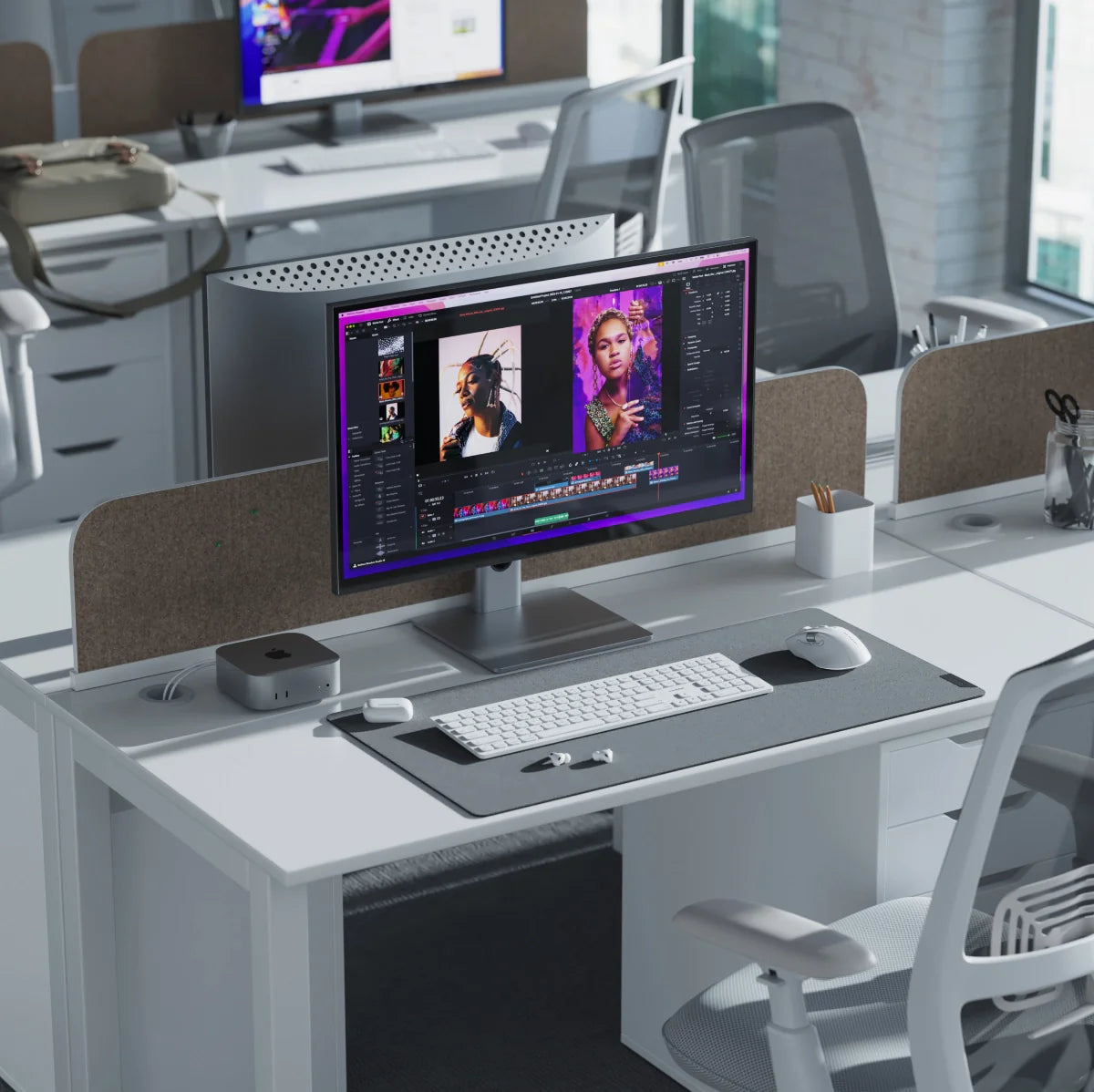
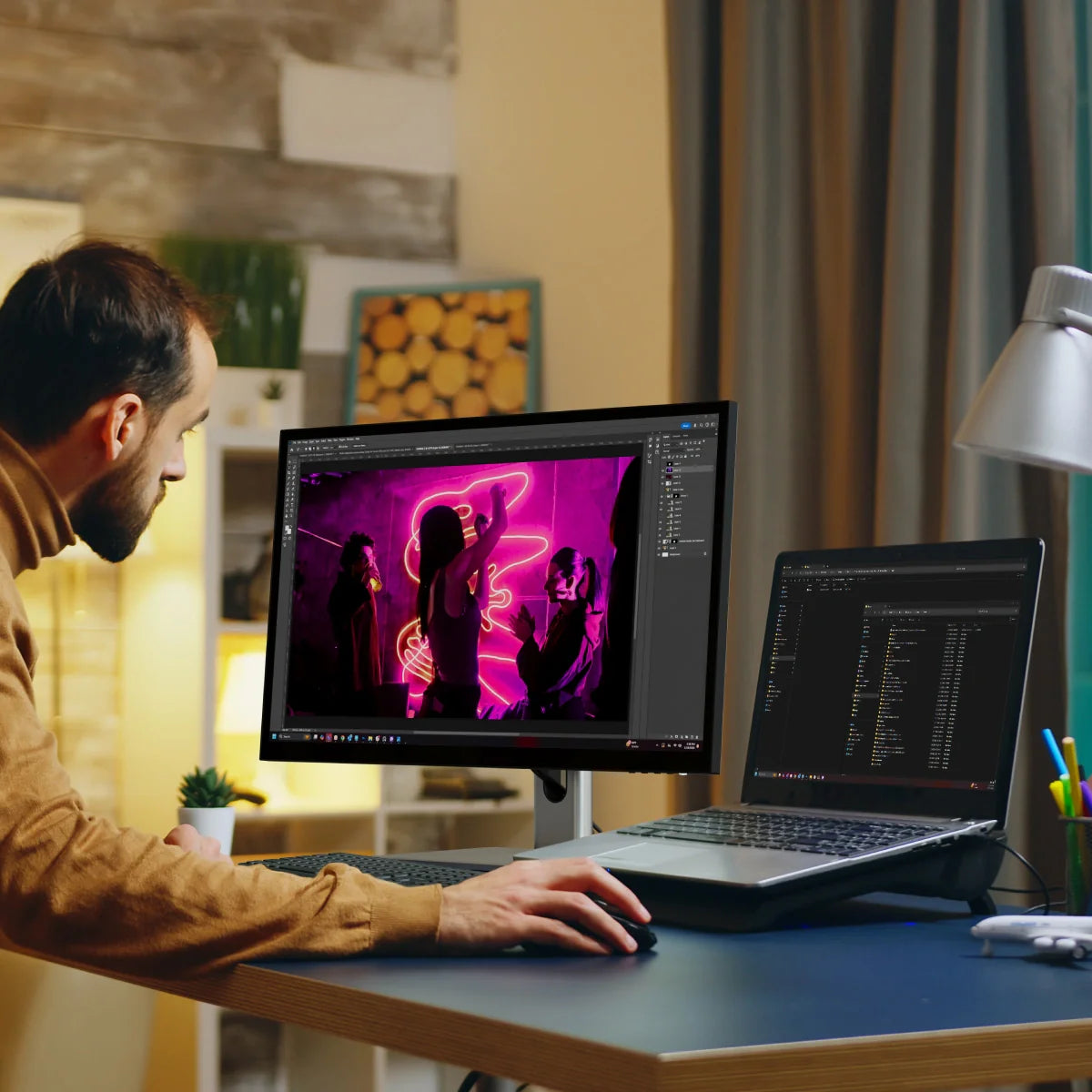
The only 5K touchscreen that works with Macs, Clarity eliminates the barriers between you and your ideas with intuitive and customisable multitouch controls on both macOS and Windows.


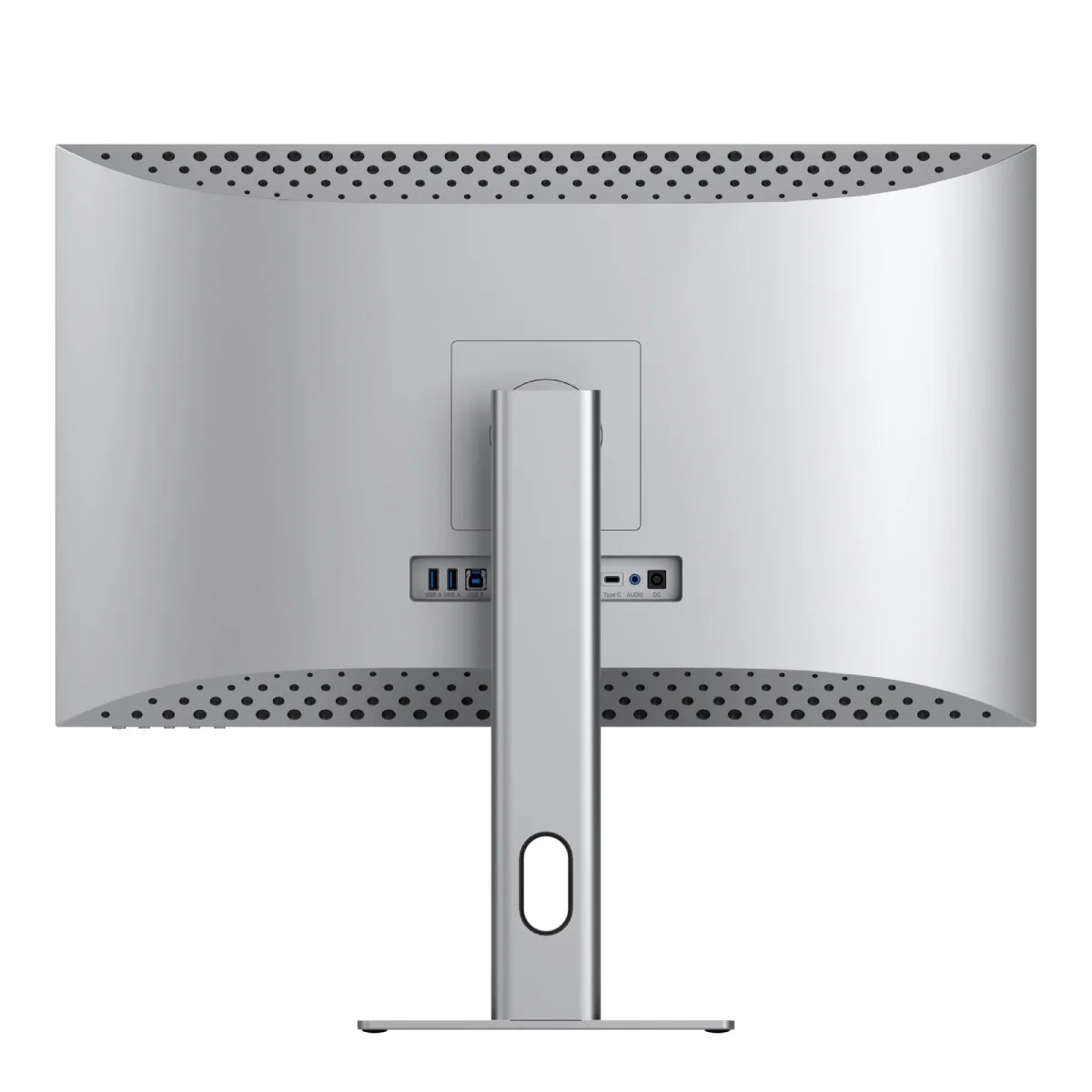
Clarity 5K is the shortcut to your digital studio, connecting your laptop to 65W charging, two USB accessories and audio all over the one USB-C cable, empowering you to connect external hard drives, your favourite wired headphones, mice, keyboards and other tools you need to make your art.


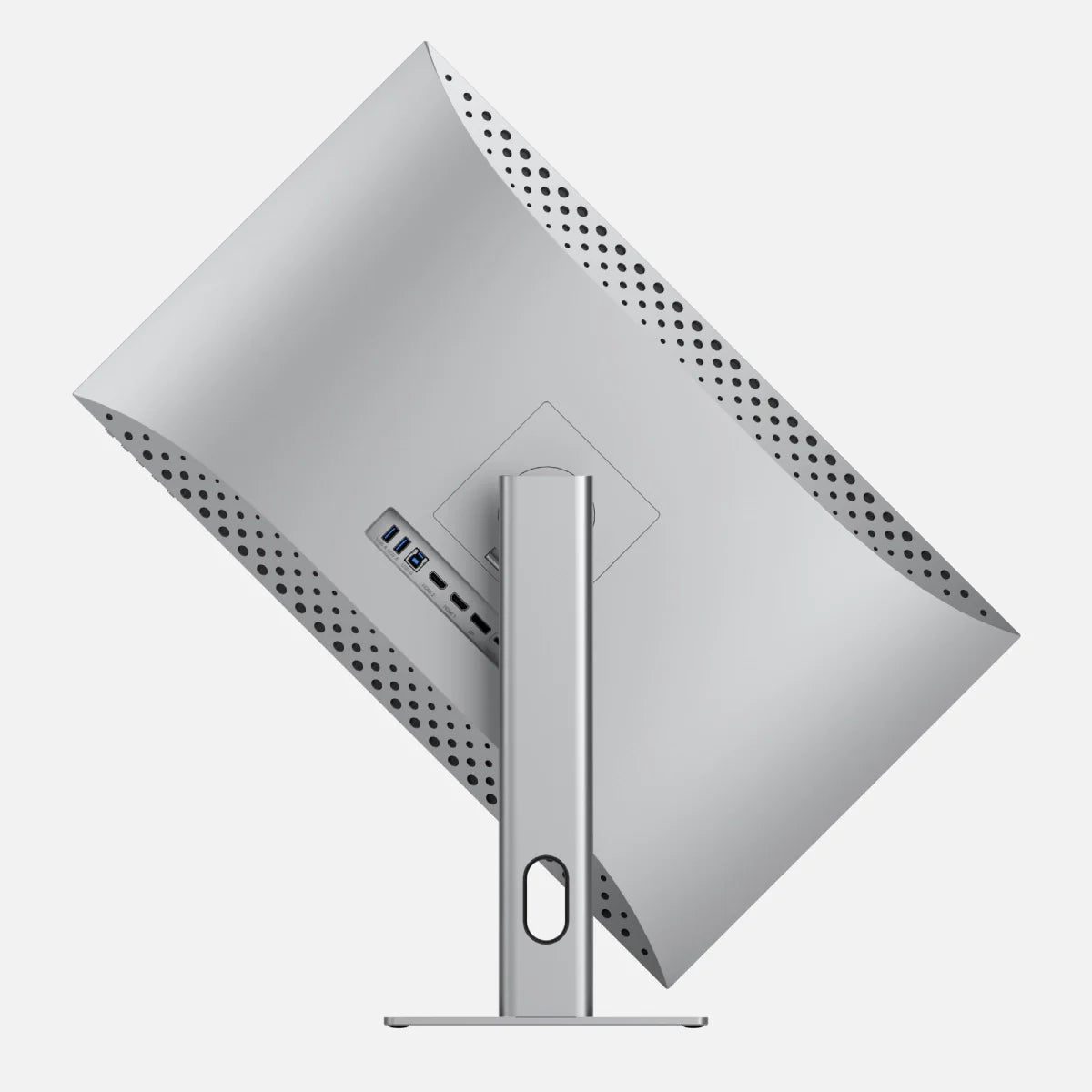
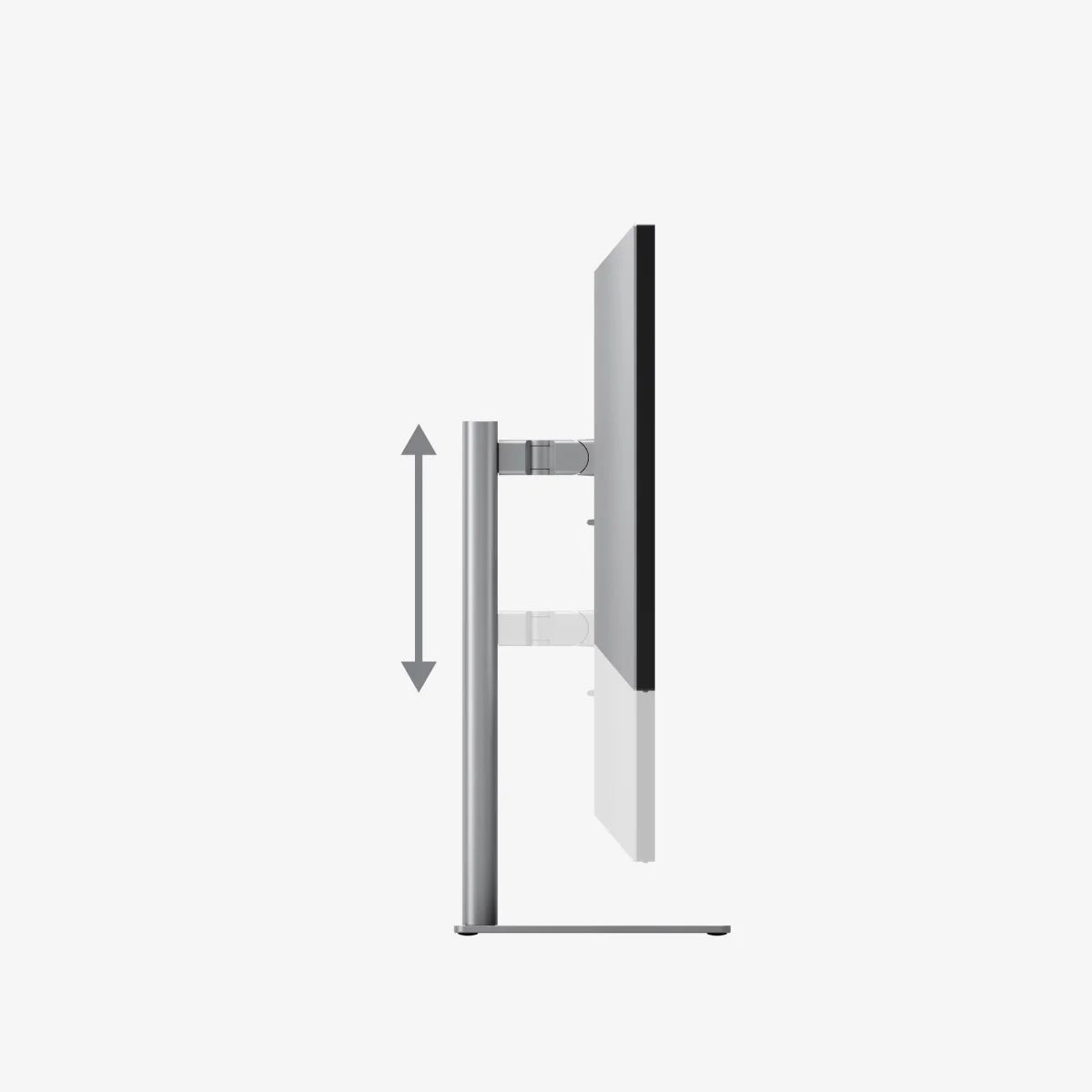
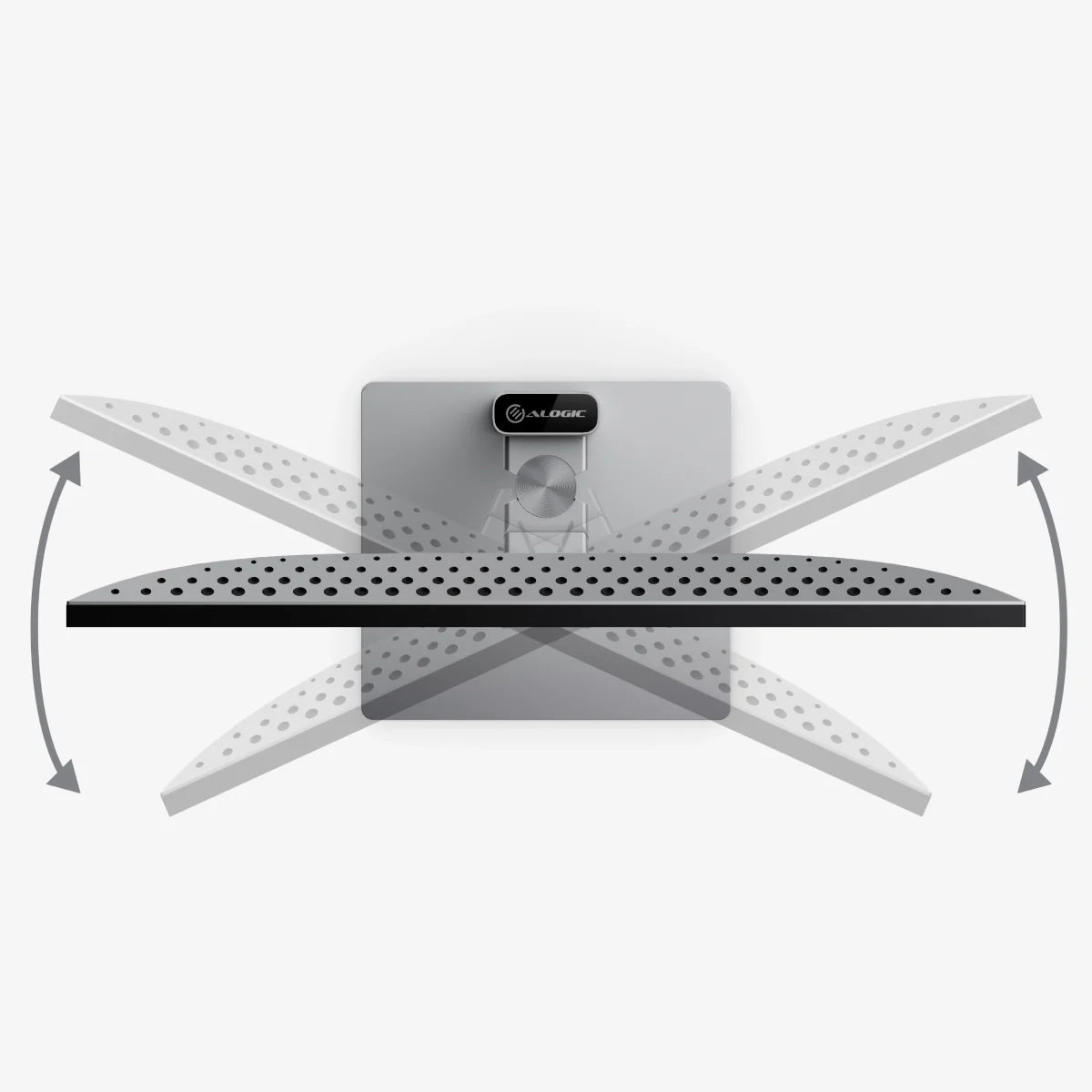
Clarity 5K’s versatile stand makes it easy to integrate into multi-monitor setups or crowded studios, letting you raise, lower, tilt, pivot, swivel and rotate Clarity into a comfortable position you can use for hours on end.
Equipped with a 100x100 VESA Mount, Clarity can also be used with other stands and monitor arms, such as our own Clarity Fold Stand or Glide Monitor Arms.
Quick and easy shortcuts, like swiping Clarity’s lower right corner with two fingers to access its touch menu, can completely change the way your navigate your favourite apps.


General

Like Clarity Pro Touch and Clarity Max Touch, Clarity 5K Touch features a 10-point touchscreen that supports MPP2.0 active styluses and multitouch gestures on Mac and Windows.
However, unlike Pro Touch and Max Touch, Clarity 5K Touch does not have a webcam.
If your computer does not support USB-C DP Alt Mode or Thunderbolt 3 / 4, we recommend using DisplayPort, as this has enough bandwidth for smooth 60Hz 5K video.
We do not recommend using HDMI to connect to Clarity 5K, as the monitor’s HDMI 2.0 ports do not have enough bandwidth to deliver smooth 60Hz video.
It’s important to check your monitor stand will support Clarity Max to avoid damaging your monitor.
Clarity 5K Touch is 27”, weighs 4.8kg without the stand and measures 623.8*48.3*372.2mm (LxDxH).
1. Connected to Clarity via either:Clarity's USB-C port or Clarity's USB-B port
2. Clarity "Active USB" mode is set to the same USB port you've connected to your computer.
To change Clarity's "Active USB" mode, navigate to "USB Switch" in the "Other Settings" menu of Clarity's main menu.
For example: if your computer is connected to Clarity via USB-C, you would select "Type-C" in the "USB Switch" menu.
However, it does need to plug into a USB-C port compatible with PD (Power Delivery) on your computer.
These can sometimes be identified by the presence of a battery icon next to the port on your laptop, but often you’ll need to check the user manual or manufacturer’s website to figure out which USB-C ports support PD.
All Thunderbolt 3 and 4 ports support PD.
In order to get multitouch working on macOS, you’ll need to install our macOS drivers – click here for instructions.
Touchscreen
Moving your mouse onto Clarity before using the touchscreen usually resolves this issue.
Solution - Windows If you’re using Windows 10 or 11 with multiple displays you can specify which monitor you want touch input to apply to, which saves you having to mouse over to that display before using touch.
To do this, launch Control Panel, click “Hardware and Sound” then ‘Calibrate the screen for pen or touch input’ from the menu.

Select “Setup”, choosing “Pen Input” if you’re using an active stylus or “Touch Input” if you’re using your fingers or a capacitive stylus, then follow the onscreen instructions.

If completing this process doesn’t resolve your issue, try setting up for the other kind of input.
Troubleshooting
To resolve the issue, restart Clarity by pressing the power button twice – it should recognize the connected device as part of its boot-up sequence.
If this issue persists, we recommend trying the following steps to isolate the issue:
Connect Clarity directly to your computer
Try connecting with a different cable or port.
ie. Use DisplayPort instead of USB-C
Update your computer’s operating system.
If your problem reoccurs and these these steps do not help resolve it, please contact ALOGIC support (support@alogic.co).
For smoother video, we recommend connecting via USB-C or DisplayPort.
Touchscreen
Moving your mouse onto Clarity before using the touchscreen usually resolves this issue.
Solution - Windows If you’re using Windows 10 or 11 with multiple displays you can specify which monitor you want touch input to apply to, which saves you having to mouse over to that display before using touch.
To do this, launch Control Panel, click “Hardware and Sound” then ‘Calibrate the screen for pen or touch input’ from the menu.
Select “Setup”, choosing “Pen Input” if you’re using an active stylus or “Touch Input” if you’re using your fingers or a capacitive stylus, then follow the onscreen instructions.
If completing this process doesn’t resolve your issue, try setting up for the other kind of input.
Display
Although each monitor varies slightly, below are the average colour accuracy stats for Clarity 5K Touch.
sRGB: 100%
Adobe RGB: 99%
DCI-P3: 99%
NTSC: 99%
If you wish to further calibrate your monitor, you will need to use a third-part calibration tool, such as a Calibrite/Sypder.
I have only tried this monitor as external display with my iPad Air with keyboard and touchpad connected to IPad. So far very impressive clarity. Fold stand is the main reason I gave this a try and it’s worth spending extra money on. Touch screen is responsive but it needs calibration but it’s something to do with IPad OS i believe. I have tried with my laptop but my laptop goes haywire and it keeps resetting display settings so no joy at the moment. Built in sound is poor. Build quality could have been better. But not bad though. Power delivery to my iPad is great, never let battery down even on power apps. I can access all the external ssd drive through the monitor which is great. When I started it first time display was very pale but after playing with setting in iPad and the display itself I managed to get the best view. It gives impressively sharp result. I wish I had a Mac mini or a PC tower so I could have tested it properly. One more thing… display doesn’t go down all way due to the wire connections at the bottom, may be different design in future updates would help.
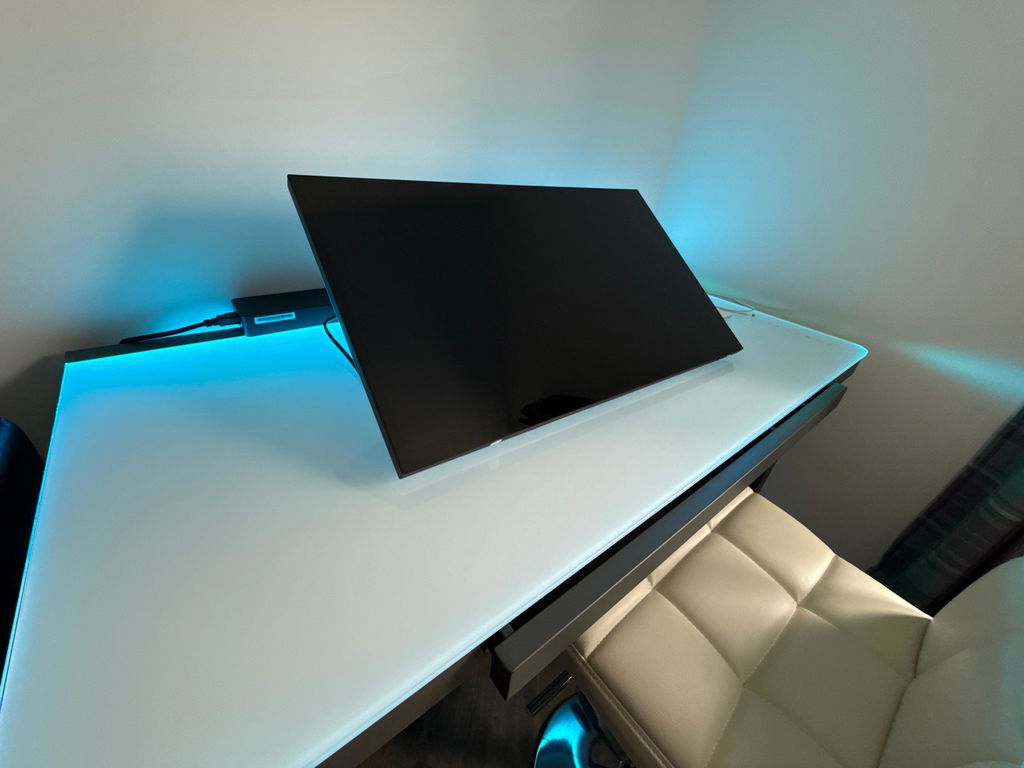
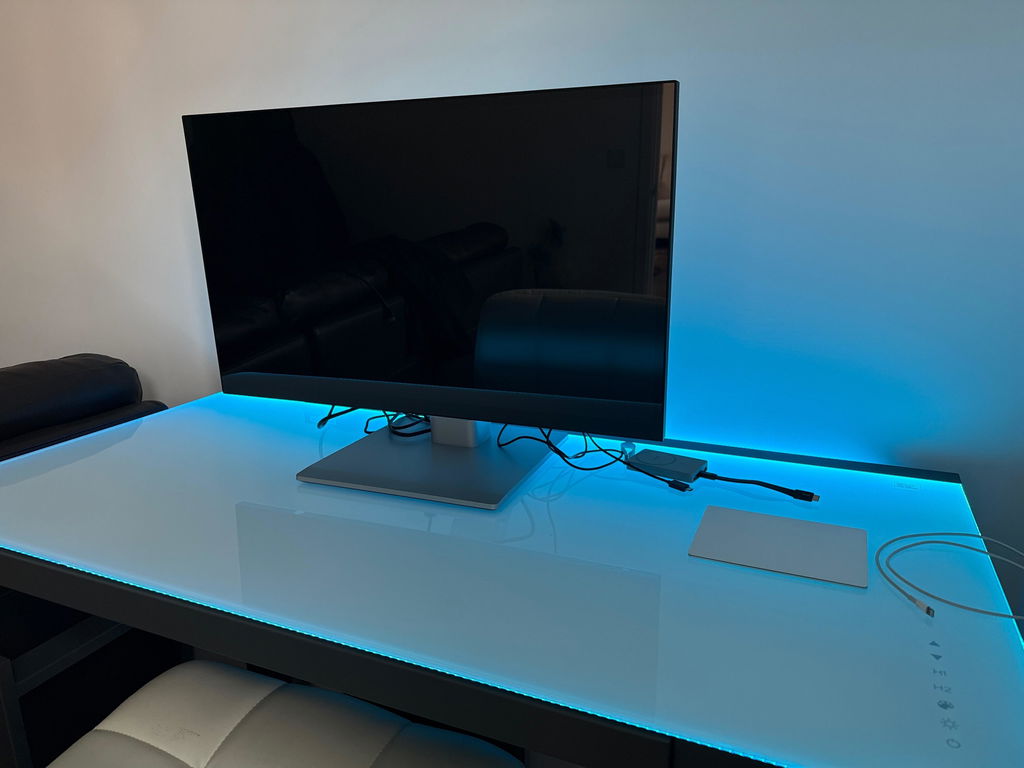
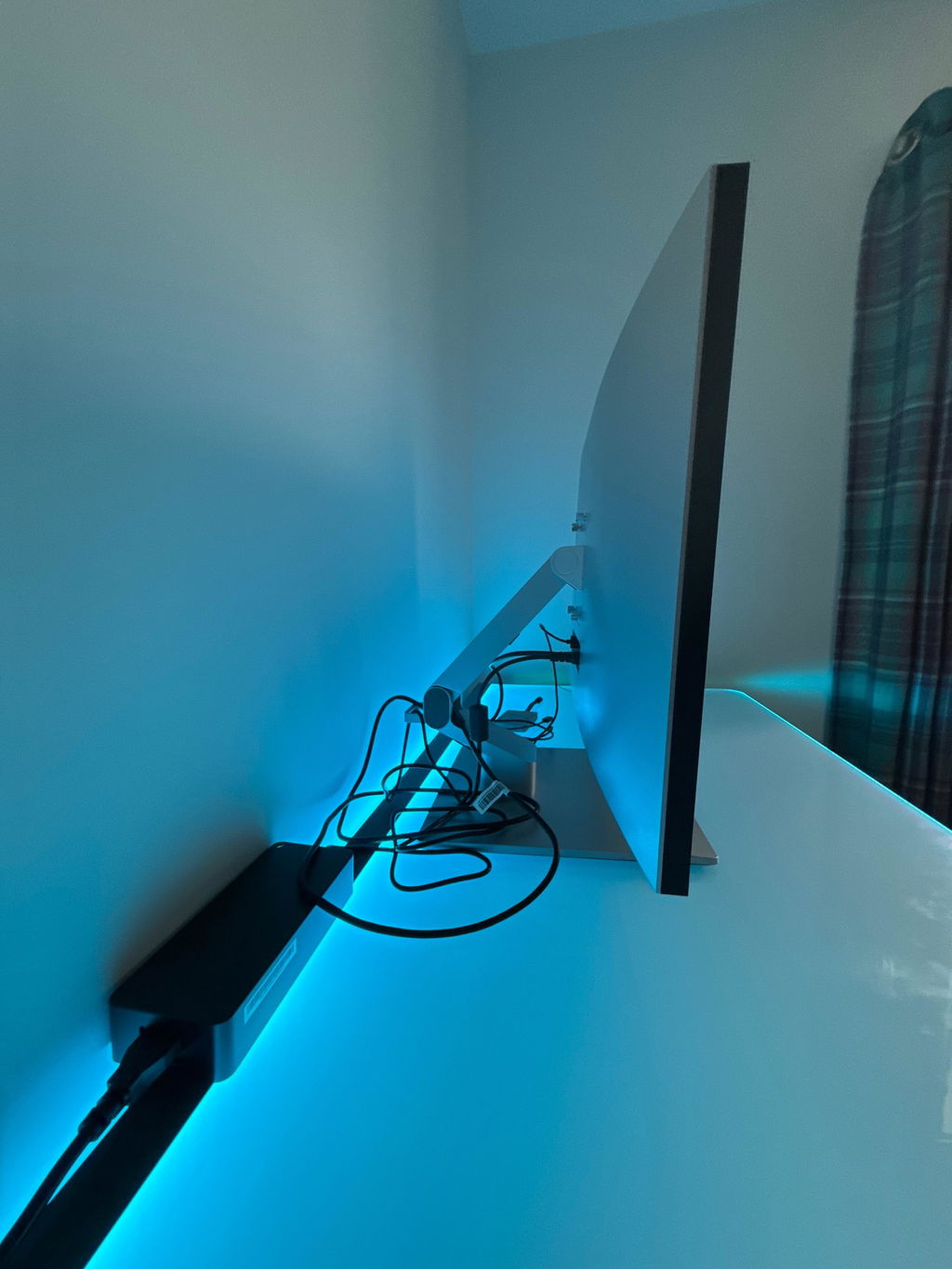
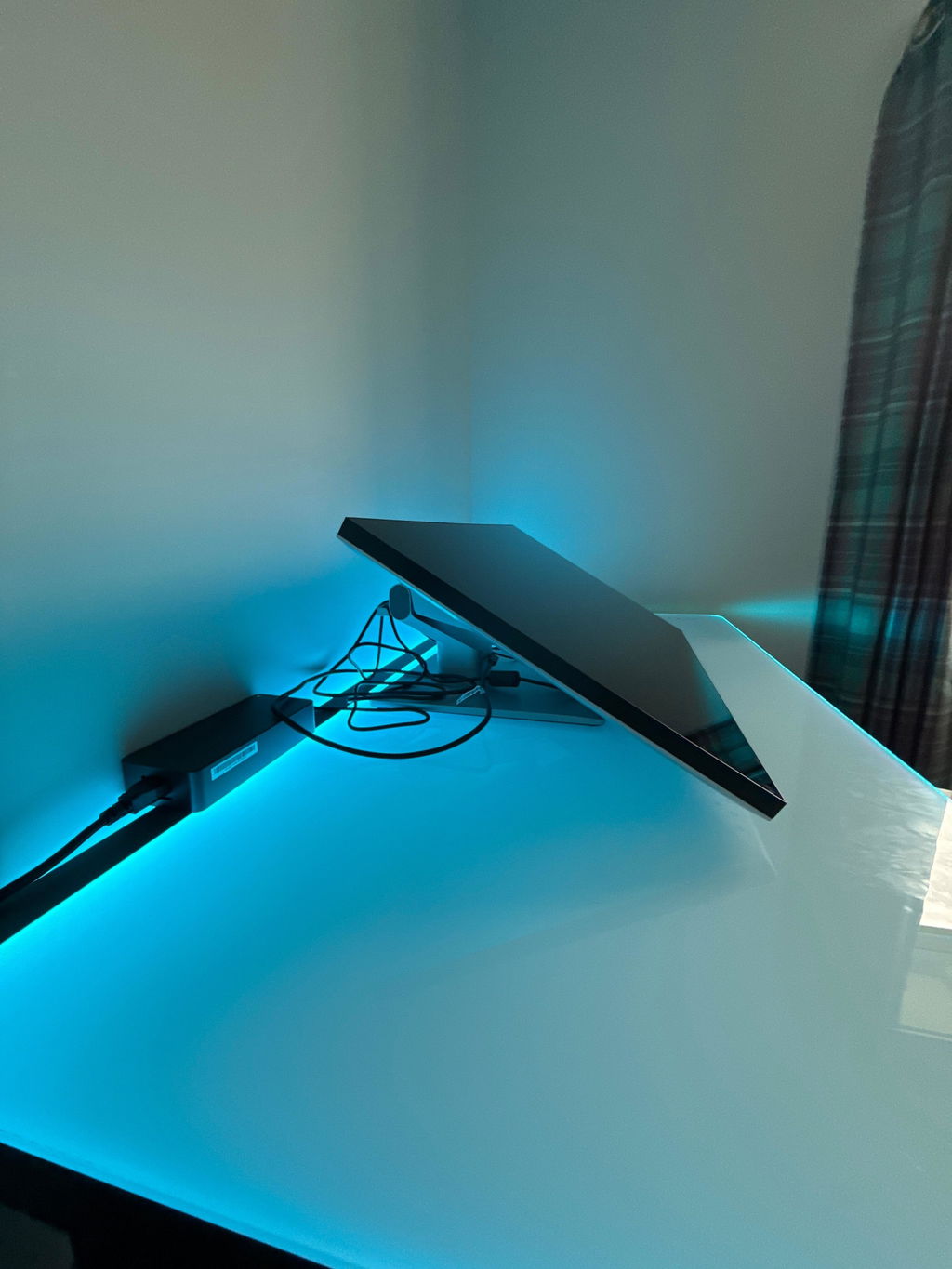
I am happy with the monitor and the experience is fullfilling.
Product werkte niet goed, dus ik wil hem retourneren. Customer support zegt dat ze mij gaan helpen, maar ik zit nog steeds op retour instructies te wachten.
Just what the Doctor ordered.
The ultra sharp screen is a pleasure to use. It seems the pen needs to be MPP2 protocol compatible. I tested with Metapen 3 Pro, and the results are excellent. 100% palm rejection is possible - checked with the display connected to a silicone Mac, Alogic pen driver installed. A good monitor. One can change brightness with the finger on the screen 😊 .
The image looks good. The exterior of monitor looks kinda cheap in person. It takes a while to wake up and times out a bit fast. If my computer turns on slow I have to restart the computer and monitor several times before they’re both on at the same time. I like the USB A ports function like a hub. I wish you could use the USB C with that as well. Specifically, plug the web cam into the monitor and have it pass the signal back via the USB B connection. Over all it’s ok. It’s not as great as I hoped but not bad enough to deal with sending it back. It really is one a few touch screens I’ve found that big.
I tried this on an Arch Linux system with the latest zen kernel at the time of writing this (6.18 I believe) The touch does work as well as the stylus in Krita, bit I at some point had to add this quirk to /etc/libinput/local-overrides.quirks to get it to map to the monitor and not every monitor I had attached
[MPP Tablet Fix]
MatchUdevType=tablet
AttrTabletIntegration=internal
You might also have to map it with the settings in your compositor or Desktop Environment. Just note that it shows a keyboard and mouse for some reason in evtest under CoolTouch devices, the one that just says "System" at the end is the touch and "System Stylus" is the stylus input.
Also I have to cycle which USB port it uses in the monitor settings sometimes as the USB sometimes disconnects, only occurred twice, but is a bit annoying...
Clarity 5K Touch 27" UHD Monitor with USB-C Power Delivery and Touchscreen
Great product.
Good product to have
Clarity 5K Touch 27" UHD Monitor with USB-C Power Delivery and Touchscreen
This has so much more resoltution than a 4k monitor..IT was a little tricky getting the touch to work(you have to connect a usb to the usbc input on the monitor in additon to the HDMI) but its great. Actually reading the directions helps...A LOT!. The sides are a little dark on the 27 inch, but I expect that is due to my optics. I also purchased the folding stand from B and H cause it was in stock and I didnt want to wait. Overall, I am very please with this and this is coming from an owner of a Studio Surface 1 and 2( my fav and this duplicates it more closely than the other monitors I had.
I had a Benq( missed the touch pen display) then I the Wacom 32 inch( too much real state and too heavy to use as a drawing tablet and monitor. Then I had the Huion 24 inch(still heavy, but no touch) and finally I have the Clarity 5k..The image is amazing and the touch and pen is great
The screen and stand are fine. The installation a little bit nervy didn’t go well needed to contact technical help. Eventually up and running. Since installation there appears to be a fault with colour/brightness in some creative apps. I am happy the technical team are on the case. The irritating thing is that I have to wait for a flexible bracket to enable comfortable use of the screen with the stylus. On enquiry was informed these will not be back in stock until end June 2025.
Perfekt für civ7
Product Comparison
| Description |
| Price |
| Vendor |
| Type |
| Product variants |
|
| Ultra-sharp 5K touchscreen monitor delivers stunning clarity and colour accuracy. USB-C power delivery charges laptops seamlessly. | Regular price
Sale price
£974.99
Regular price
| ALOGIC UK |
Choose your option
- Choosing a selection results in a full page refresh.
- Opens in a new window.